

Available colors
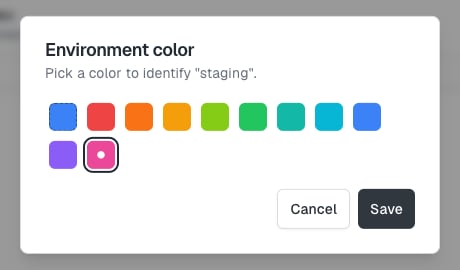
Pick one of ten colors: Red, Orange, Amber, Lime, Green, Teal, Cyan, Blue, Violet, or Pink. The first swatch in the picker is special:- Default appears when the environment name has a default color. The swatch is filled with that color and has a dashed outline.
- No color appears for every other name. The swatch is empty with a diagonal slash.
An environment with any other name has no color until you pick one. Choosing Default or No color removes the color you set and returns the environment to its default.
Where colors show up
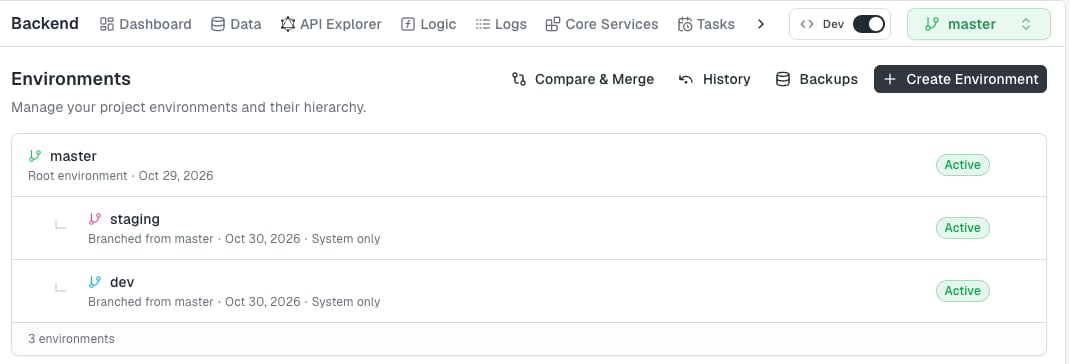
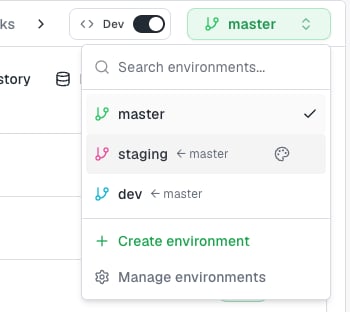
- Environment selector — the button at the top of the Backend Console takes on the active environment’s color. Each row in the list shows its own color on the branch icon.
- Environments page — each row’s branch icon uses the environment’s color.
- Frontend page — the backend environment control in the Frontend header uses the color of the environment your frontend connects to. See Choose the backend environment.
Choose a color when you create an environment
The create-environment modal has a Color field between the name and the branch mode. Select a swatch to set the color. Leave Default or No color selected to skip it. See Creating environments.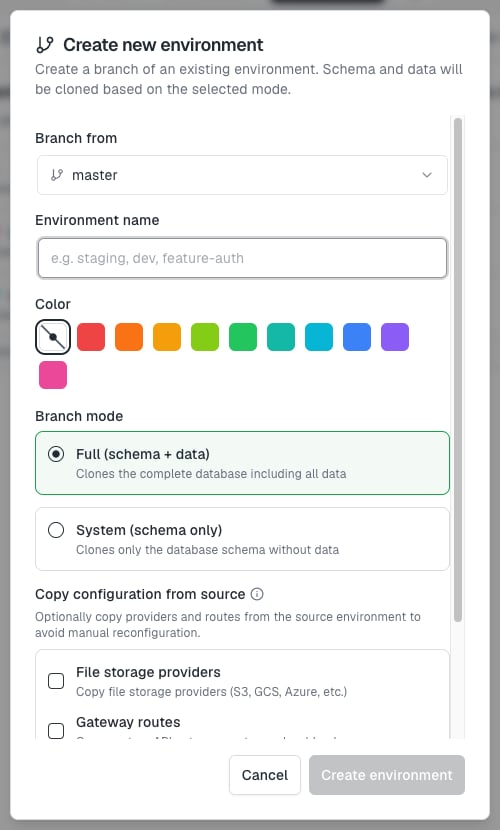
Change the color of an existing environment
You need permission to edit the backend to change a color. Without it, you don’t see the color controls.From the environment selector
From the environment selector
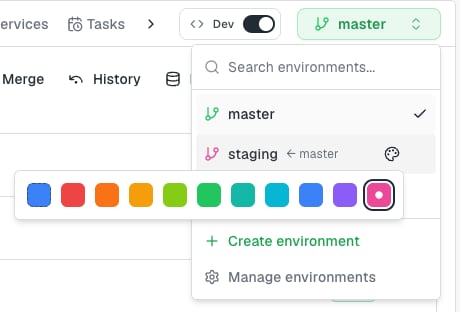
- Open the environment selector at the top of the Backend Console.
- Hover over the environment’s row. A palette button appears on the right of the row.
- Click the palette button and select a swatch.
From the Environments page
From the Environments page
- Open the Environments page from Manage environments in the environment selector.
- Open the Actions menu on the environment’s row and select Change color.
- In the Environment color modal, select a swatch.
- Click Save. Click Cancel to close the modal without changing anything.
FAQ
Does the color change how an environment behaves?
Does the color change how an environment behaves?
No. The color only changes how the environment is displayed.
Why does my staging environment already have a color?
Why does my staging environment already have a color?
Environments named
test, testing, qa, uat, or staging default to blue, and master defaults to green. Pick another swatch to override the default.