

Enable it
1
Open the panel
Open your project, go to Backend, then Core Services, and select MCP Server.
2
Turn it on
Switch the MCP Server toggle on. The Server identity, Connect an assistant, and Tools cards appear below it.
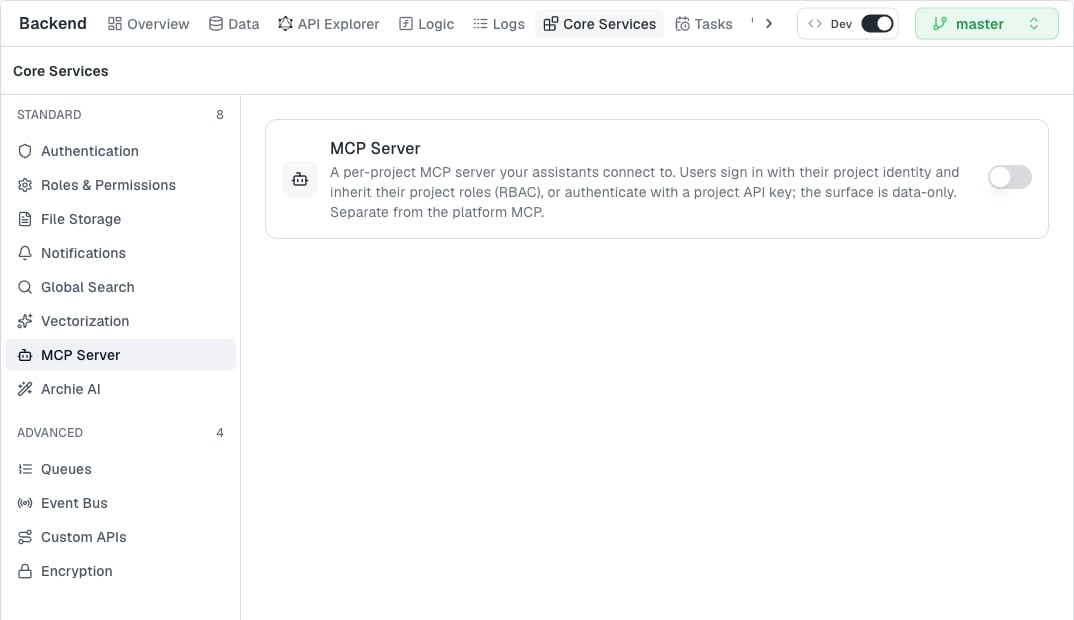
Enabling the MCP Server doesn’t open your data to everyone. Users authenticate as themselves and act with their own project roles.
Server identity
The Server identity card sets the name, icon, and description that connecting assistants show for this server. All three are optional. Leave them blank to use the defaults.
Edit the fields and click Save. Archie confirms with Server identity saved.
Authentication
The Connect an assistant card tells you how users connect. The message depends on the authentication providers that are active on your project:- Sign-in (identity). Active providers of type Archie Identify, OAuth2, Google, Microsoft, Cognito, or Shiro. Connecting opens a login window, and there is no token to paste.
- API keys. Active providers of type API key or API token. Users paste a project API key as the
Authorizationheader. The configuration in the panel includes the header with the placeholderYOUR_PROJECT_API_KEY. Create keys under API Keys. - Both. Users choose either. The configuration in the panel uses an API key. Users leave it out to sign in instead.
Tools
The Tools card controls which tools assistants can use. The default set is data-only: introspection,execute_graphql_operation, semantic_search, docs, and context. Until you curate the set, the card shows Using the default data-only tool set.
When the card lists tools, each tool has its own switch. Turn a tool off to withhold it. You can narrow the data-only set, but you can’t add tools beyond it.
Permissions
The MCP Server doesn’t widen access. A connected user acts with their own project role, and Role-Based Access decides what that user can do.Next step
To connect a tool, see Connecting an assistant.FAQ
Does enabling the MCP Server expose all my data?
Does enabling the MCP Server expose all my data?
No. Users authenticate as themselves and act with their own project roles. The surface is data-only.
Is this the same as the Archie MCP?
Is this the same as the Archie MCP?
No. The Archie MCP is account-level Agent Access that you approve in your browser. The MCP Server belongs to one project and works with that project’s data.
Why doesn't my icon show up in the assistant?
Why doesn't my icon show up in the assistant?
Assistants that add a server by URL can show their own avatar instead. The
https URL form of the icon is the one assistant directories use.Is the configuration per environment?
Is the configuration per environment?
Yes. The panel reads and saves enablement, identity, and tools for the environment you have selected. The server URL for any environment other than
master ends in ?environment=<name>.