

Integrations such as Slack, Stripe, SendGrid, Twilio, and Shopify are configured per project in the project’s backend. See Backend integrations.
How do I connect GitHub?
Connect GitHub once for your Archie organization. Every project in the organization can then link to a repository.1
Open the GitHub card
Open Organization → Integrations and select GitHub. The card shows Not connected, Connected, Awaiting GitHub owner, or Action needed.
2
Connect GitHub
Select Connect GitHub. A GitHub window opens, where you authorize and install the Archie GitHub App in one step. Choose the GitHub account where the app should live. This account is separate from your Archie organization.
3
Finish in the GitHub window
Archie shows Waiting for GitHub… while you finish. You don’t need to refresh the page. If your browser blocks the window, allow pop-ups for the site and select Try again. Select Reopen GitHub window to bring it back.
If the connection doesn’t complete
Archie shows Connection not completed with the reason:- You closed the GitHub window or declined access. Nothing changes in GitHub or Archie.
- The GitHub account is already connected to another Archie organization.
- Another user started the connection. Start it again from your account.
- Your Archie session expired. Sign in again and retry.
Manage the connection
Open the GitHub card to see the account under Installed on. You can have one installation per Archie organization. The card also lists the projects that use the connection.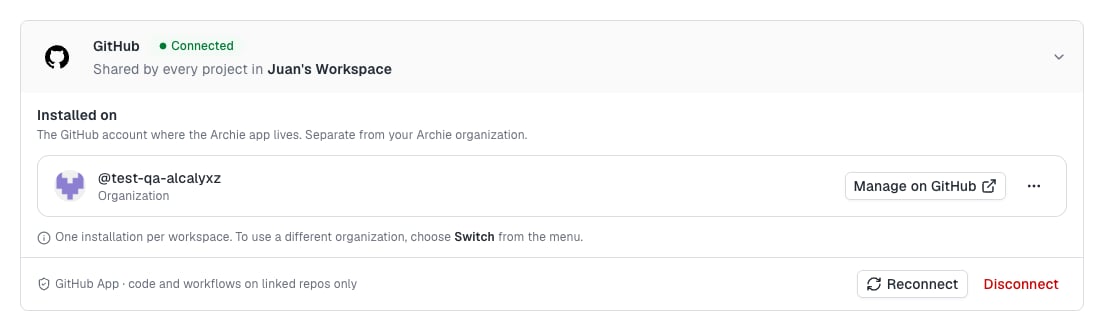
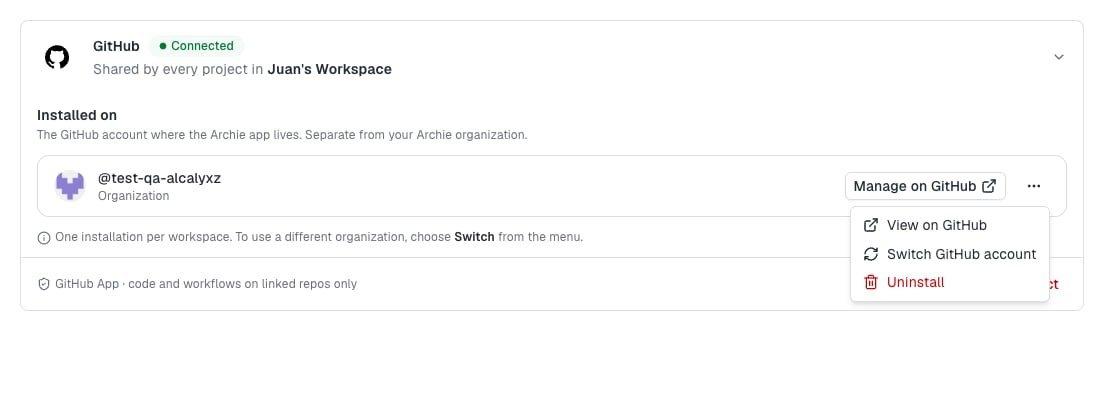
Switch GitHub accounts
Select Switch GitHub account to use a different GitHub organization or account. Archie replaces the current installation and the GitHub links of this organization’s projects. It lists the projects that will lose their link before you confirm with Switch account. Reconnect works the same way. You approve access on GitHub again. If you pick a different account, it replaces the connection, and the projects lose their links.Link a project to a repository
After GitHub is connected, link each project to a repository. Select the GitHub button in the project header, or open the project’s Integrations settings and select Link to GitHub. The Connect this project to GitHub dialog walks you through four steps: Connect, GitHub org, Repository, and Review. If GitHub isn’t connected yet, the first step connects it. When your organization already has a GitHub connection, the dialog skips ahead and opens on Repository.
1
Choose the GitHub account
Select the GitHub account that holds the repository. If GitHub is already connected, Archie uses the connected account and this step is already complete when the dialog opens.
2
Choose the repository
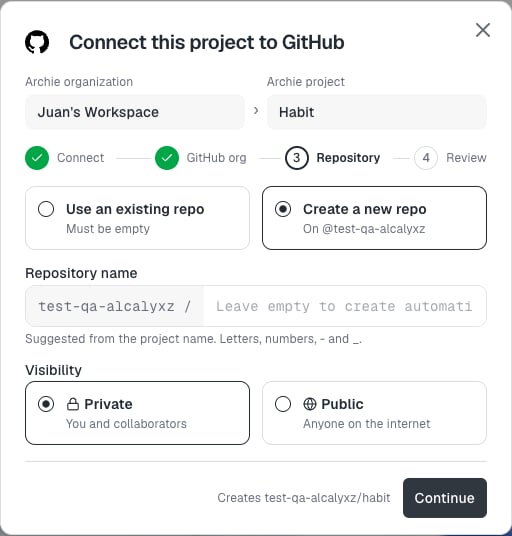
Select Use an existing repo to pick a repository marked Empty. Select Create a new repo to create one. The name is suggested from the project name, and you choose Private or Public. Select Continue to go to Review.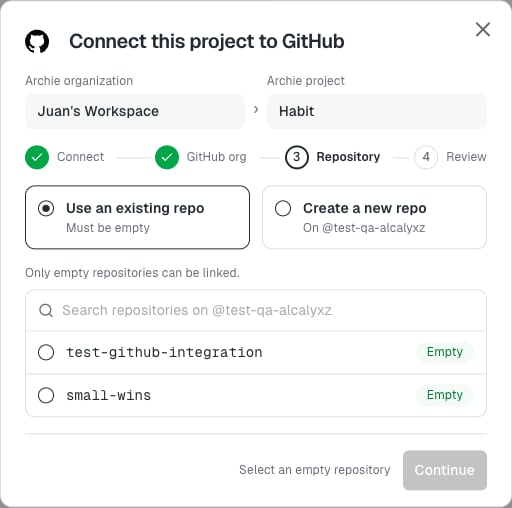
3
Review and link
Review shows the repository, its visibility, and the GitHub organization. Archie pushes code and workflows to the repository. It reads the repository’s metadata. It can’t change your account settings or touch other repositories. Nothing is pushed until you select Link project. Select Back to change a choice.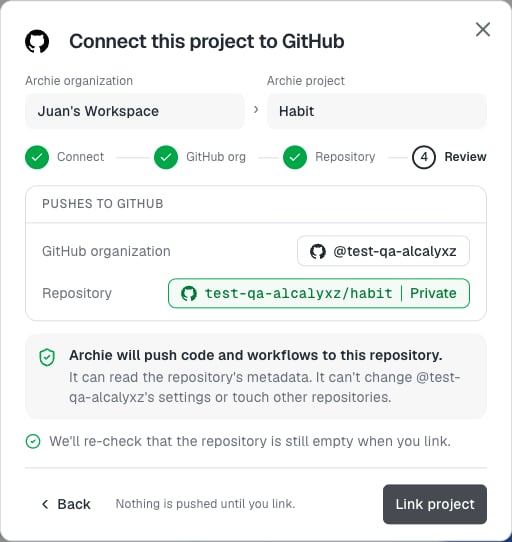
Only empty repositories can be linked. To use an existing repository that has content, empty it first, or create a new repository. Archie checks again that the repository is still empty when you link.
How syncing works
Archie publishes your app to the linked repository on the branch you choose. The sync is one-way. Changes you make on GitHub aren’t pulled back, so don’t commit to that branch. If the branch has commits Archie doesn’t have, or an unrelated history, sync is blocked. Select Publish to archie/main to publish to a separate branch, then open a pull request on GitHub to merge it. The project’s Integrations settings show the repository, branch, last sync, last commit, and who linked it. Select Sync now to start a sync.Manage the link from the project header
Select the GitHub button in the project header for the linked repository and its sync status.- Open repository opens it on GitHub.
- Branch settings lets you choose or create a branch.
- Change repository unlinks the current repository and lets you pick another. Archie warns you that you can’t link the old repository again, because it already has content.
- Change GitHub organization switches to another GitHub account.
- Unlink project stops syncing the project. Your code on GitHub isn’t deleted.