

What’s new
- Choose the backend environment for your frontend
- Quick actions in chat
- Generation progress in chat
- Environment colors
- A shorter GitHub connection flow
Frontend
Choose the backend environment for your frontend
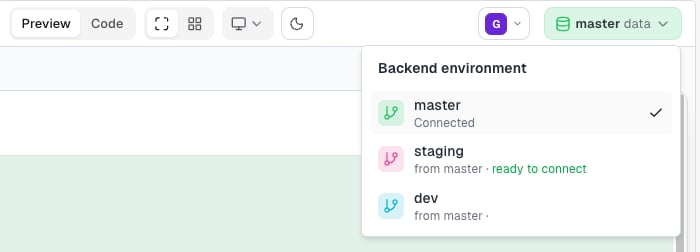
The Frontend page header now has a backend environment control. It shows the environment your frontend connects to, for example master data. Click it to point the frontend at another environment, such asstaging, without regenerating the app.

Quick actions in chat
Archie’s answers can now end with clickable next steps. Each chip shows a short label and sends a longer message when you select it. To change a message before it goes out, click the pencil on a chip, edit the text, and send it. Press a number key from 1 to 9 to pick the matching chip. Every set of chips ends with an Other row. It puts the cursor in the chat composer and sends nothing, so you can write your own reply. The suggestions heading and the Other row appear in the language of the conversation. Learn moreGeneration progress in chat
When you generate, add, or regenerate a single screen, a status bar above the chat composer tracks the job. It advances screen by screen, for example from 1/10 to 2/10, and showsN/N · publishing once every screen is designed and Archie publishes them. The composer stays available while the job runs.
Sitemap and full prototype runs show their progress in the chat itself. The lines are in plain language, such as “Reading your plan…”, “Choosing photos for your screens…”, and “Giving your screens a second look…”. When a run ends, the chat posts a summary of what finished.
Learn more
Backend
Environment colors
Give each backend environment a color. Choose one of ten colors when you create an environment, or select Change color from an environment’s row menu on the Environments page. The color tints the environment selector and each environment’s branch icon, so you can tellmaster, staging, and feature environments apart at a glance.
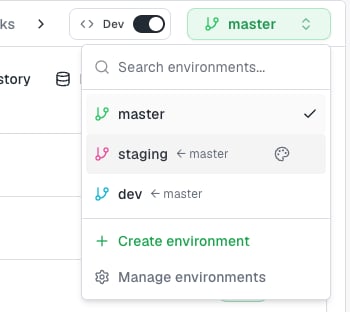
master is green by default. test, testing, qa, uat, and staging are blue. Other names have no color until you pick one. You need permission to edit the backend to change a color.
Learn more
Organizations
A shorter GitHub connection flow
Connecting GitHub takes fewer steps. Connect once for your Archie organization, and every project in it can use the connection. While you approve access in the GitHub window, Archie shows Waiting for GitHub… and updates on its own when you finish. If the connection doesn’t complete, you see the reason and can select Connect again. To link a project, pick an existing empty repository or create a new one. Only empty repositories can be linked. Archie tells you when a repository is public. From the project header, you can open the linked repository, select Change repository, change the GitHub organization, or Unlink project. Before you switch GitHub accounts, Archie lists the projects that will lose their GitHub link. Learn moreFixes and polish
- The Connect this project to GitHub dialog fits its window in languages with long step names, such as Spanish.
- The Backend navigation no longer stays disabled after the Overview page loads when the first request for your tables fails.
- In the preview, an account you create inside your generated app is no longer replaced by the seeded preview user. The Signed in as chip tells you when the app holds its own account.
- When a prototype run ends, the canvas header and screen badges no longer keep showing Generating. The chat keeps its end-of-run summaries after you reload.