

Creating a table
You can create a table manually or describe what you need in plain language and let the AI generate it.1
Open the Data Model
Click Data in the Backend header. The list of existing tables appears in the sidebar.
2
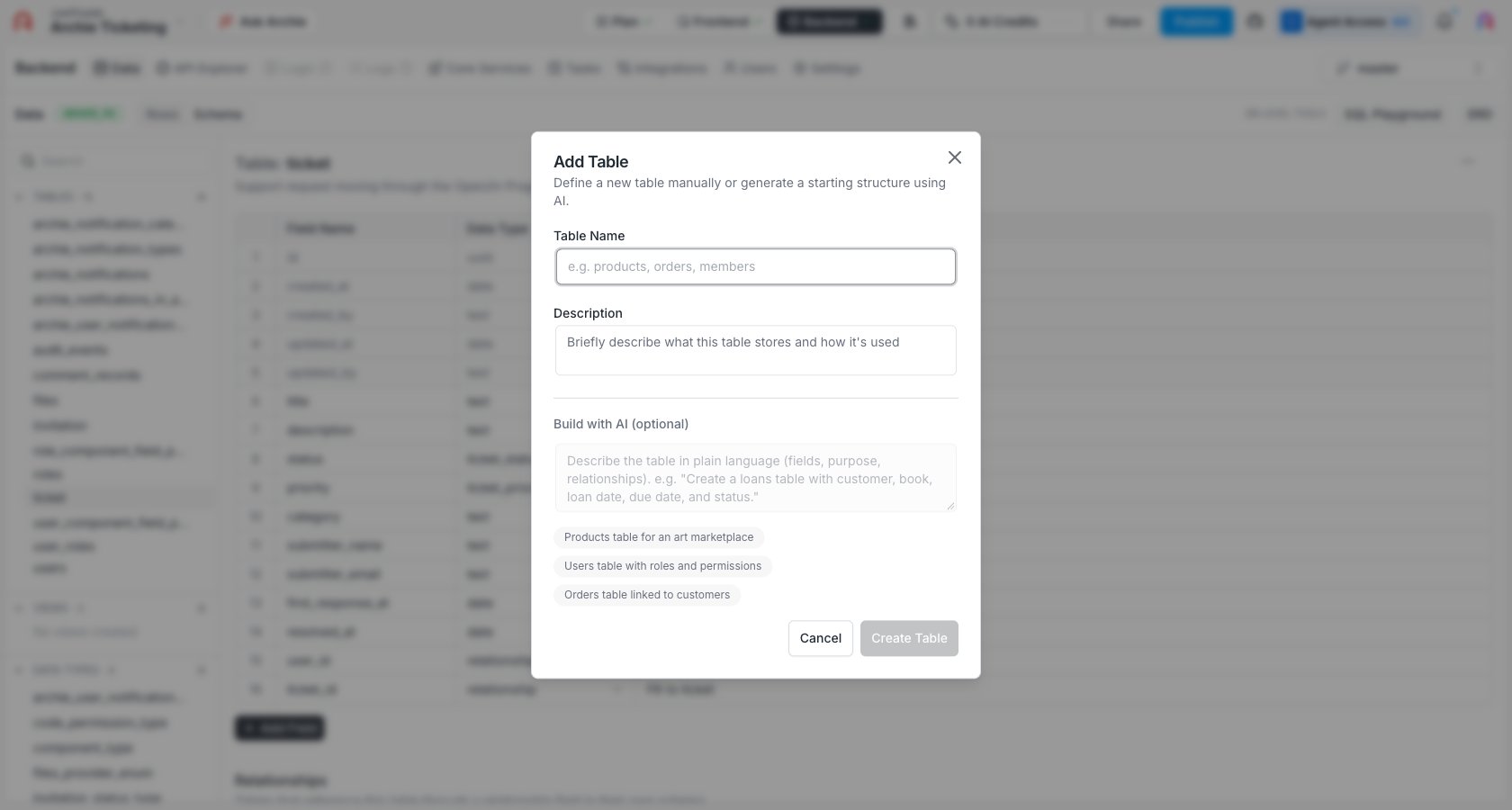
Click + Add Table
The Add Table modal opens.
3
Name the table
Enter a unique, lowercase identifier (for example
products, orders, members). This is the name that will appear in the GraphQL and REST APIs.4
Add a description (optional)
Briefly describe what the table stores. This helps your team and any AI agents working on your project understand its purpose.
5
Build with AI (optional)
Instead of adding fields by hand later, describe the table in plain language — for example, “Create a loans table with customer, book, loan date, due date, and status”. You can also pick one of the suggestion chips to start from a template.
6
Create the table
Click Create Table. The table appears in the sidebar, ready for fields.
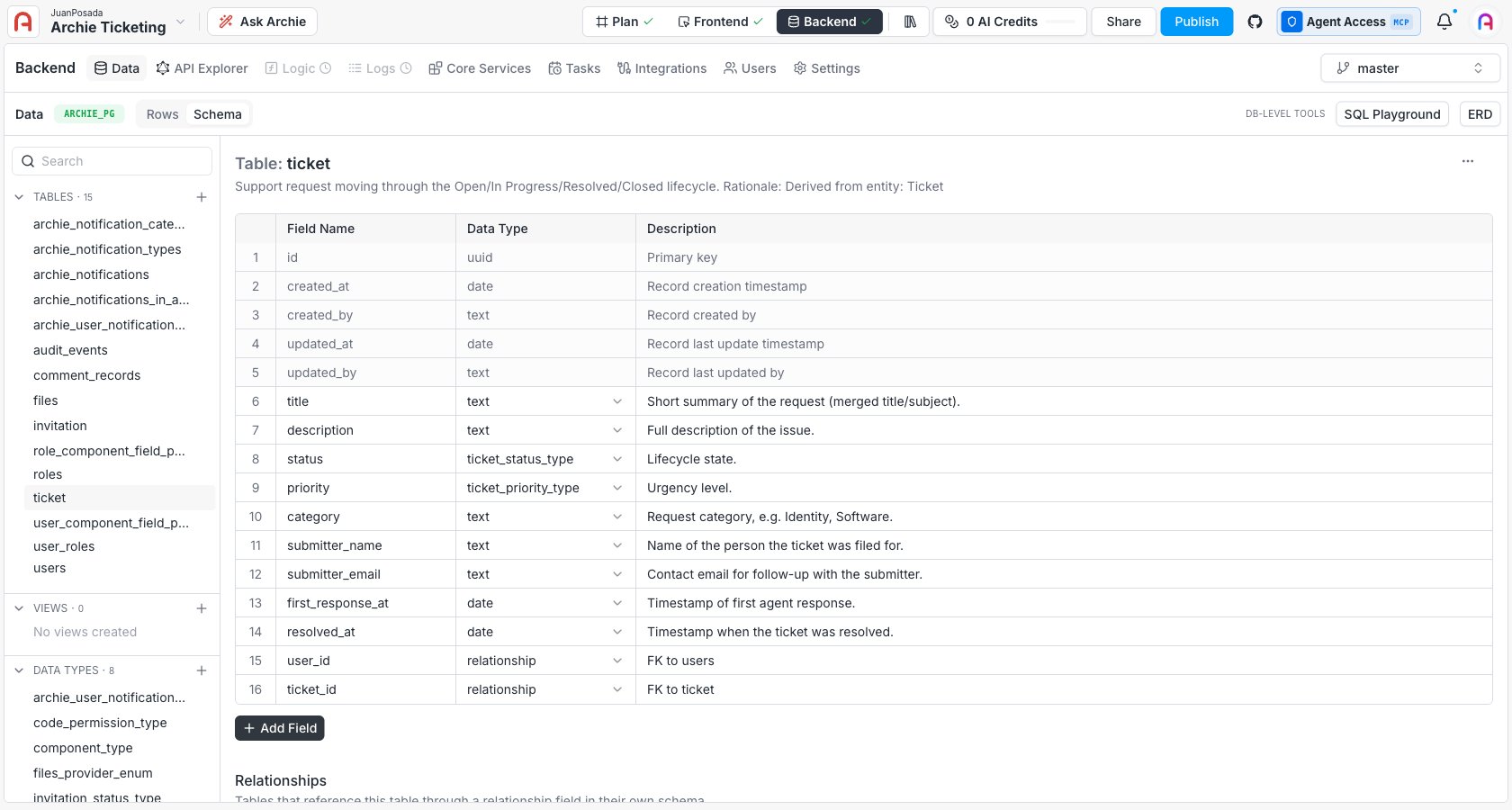
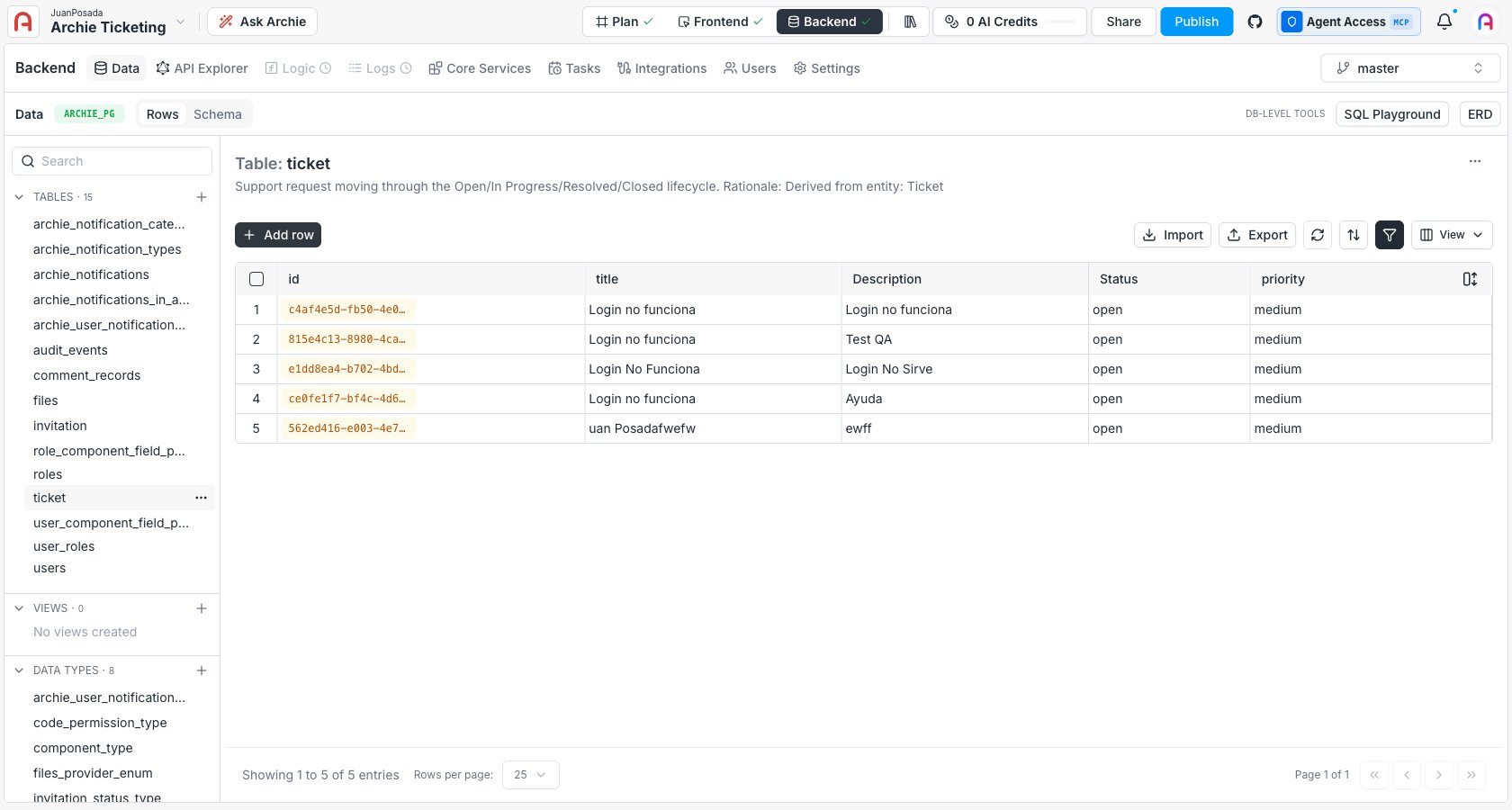
The Schema and Data tabs
Every table has two tabs:- Schema — design the table: add fields, set defaults, configure validation, define relationships, and create indexes.
- Data — view, edit, import, and export the records inside the table. See Data Viewer.
Renaming and describing a table
Click the ••• menu next to the table name and select Table settings to edit the table’s name and description.- Renaming the table propagates the change to the auto-generated GraphQL and REST APIs immediately.
- The description helps your team and any AI agents working on your project understand what the table stores.
Adding and configuring fields
Click + Add Field below the field list to add a column. Each field has a type — boolean, date, number, text, JSONB, UUID, relationship, inline enum, or a reusable Data Type. See Fields for the full list and configuration options.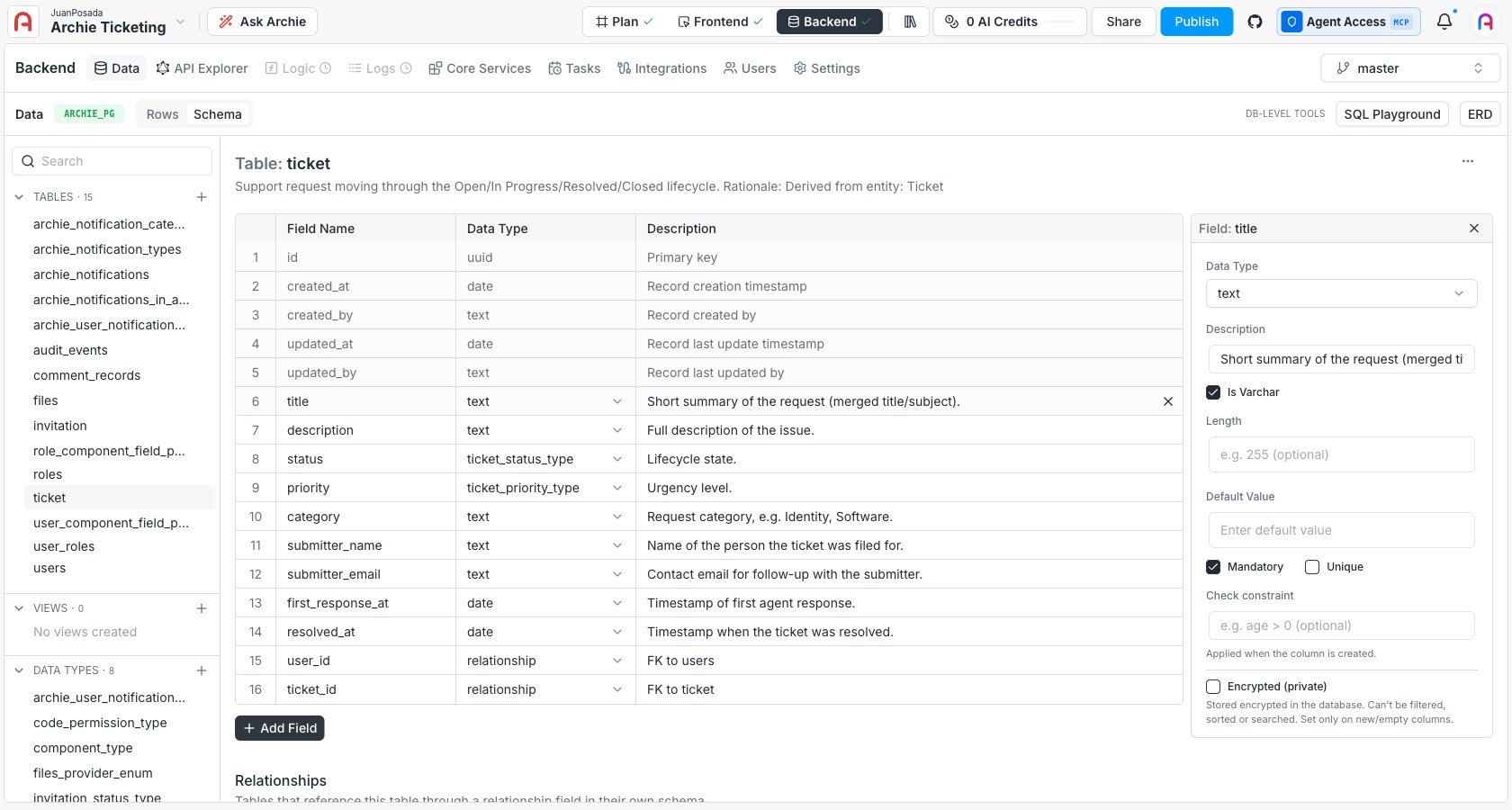
Deleting a table
You can delete a table from two places. From the sidebar: hover the table in the Tables list, click its ••• menu, and select Delete. From the table header: open the table, click the ••• menu next to the table name, and select Delete this Table.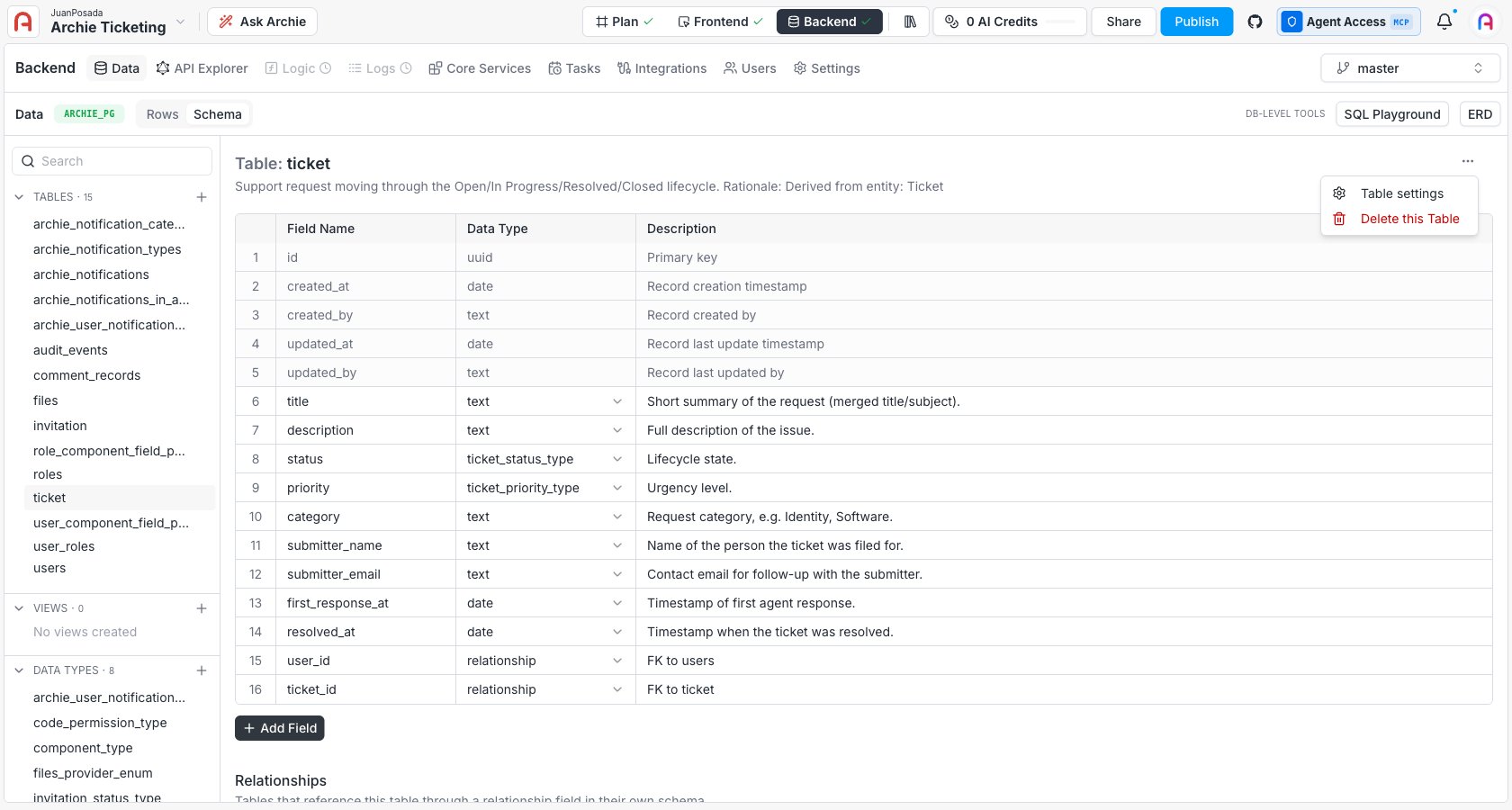
System tables
Archie ships with system tables that the platform itself depends on — most notablyusers, roles, and user_roles. These tables appear in the Data Model so you can extend them with custom fields, but their core fields are read-only and the table itself cannot be renamed or deleted. The trash can icon is hidden on system tables.
You can still:
- Add new fields alongside the system fields.
- Read and write rows through the Data Viewer and the auto-generated APIs.
- Govern access to them in Role-Based Access.
Safety checks when updating a table
Archie protects against changes that would silently break existing data:- Switching a field from optional to mandatory prompts you for a default value to backfill existing rows.
- Changing the type of a Date, Number, or Text field automatically converts existing values where possible.
- Switching a field to Unique validates that the current values are already unique before applying the change.
Permissions
Who can read or write each table is configured in App Services → Role-Based Access, not in the Data Model. See Role-Based Access.FAQ
Why can't I delete the users table?
Why can't I delete the users table?
users, roles, and user_roles are system tables. The platform’s authentication and access control depend on them, so the delete and rename actions are disabled. You can still add custom fields to them.What happens to the GraphQL and REST APIs when I rename a table?
What happens to the GraphQL and REST APIs when I rename a table?
Both APIs regenerate immediately. Any client code or integrations that referenced the old name will need to be updated to the new name.
Can I undo a table deletion?
Can I undo a table deletion?
No. Deleting a table drops the underlying records and the generated API endpoints. Export the data first if you might need it again.
How do I let some user types read a table but not write to it?
How do I let some user types read a table but not write to it?
Configure that in Role-Based Access. The Data Model defines the shape of the table; permissions are enforced separately on every auto-generated query and mutation.
Can I generate a table from a description instead of adding fields by hand?
Can I generate a table from a description instead of adding fields by hand?
Yes. The Build with AI section of the Add Table modal accepts a plain-language description and generates a starter table with suggested fields, which you can then refine.