

- Navigate — click through the prototype’s links as a user would, to move between screens.
- Select / Inspect — click an element to select it and edit it directly.
- Arrange — reposition elements on the canvas.
- Comment — leave feedback pinned to a specific spot on the screen; see Comments.
Selecting an element
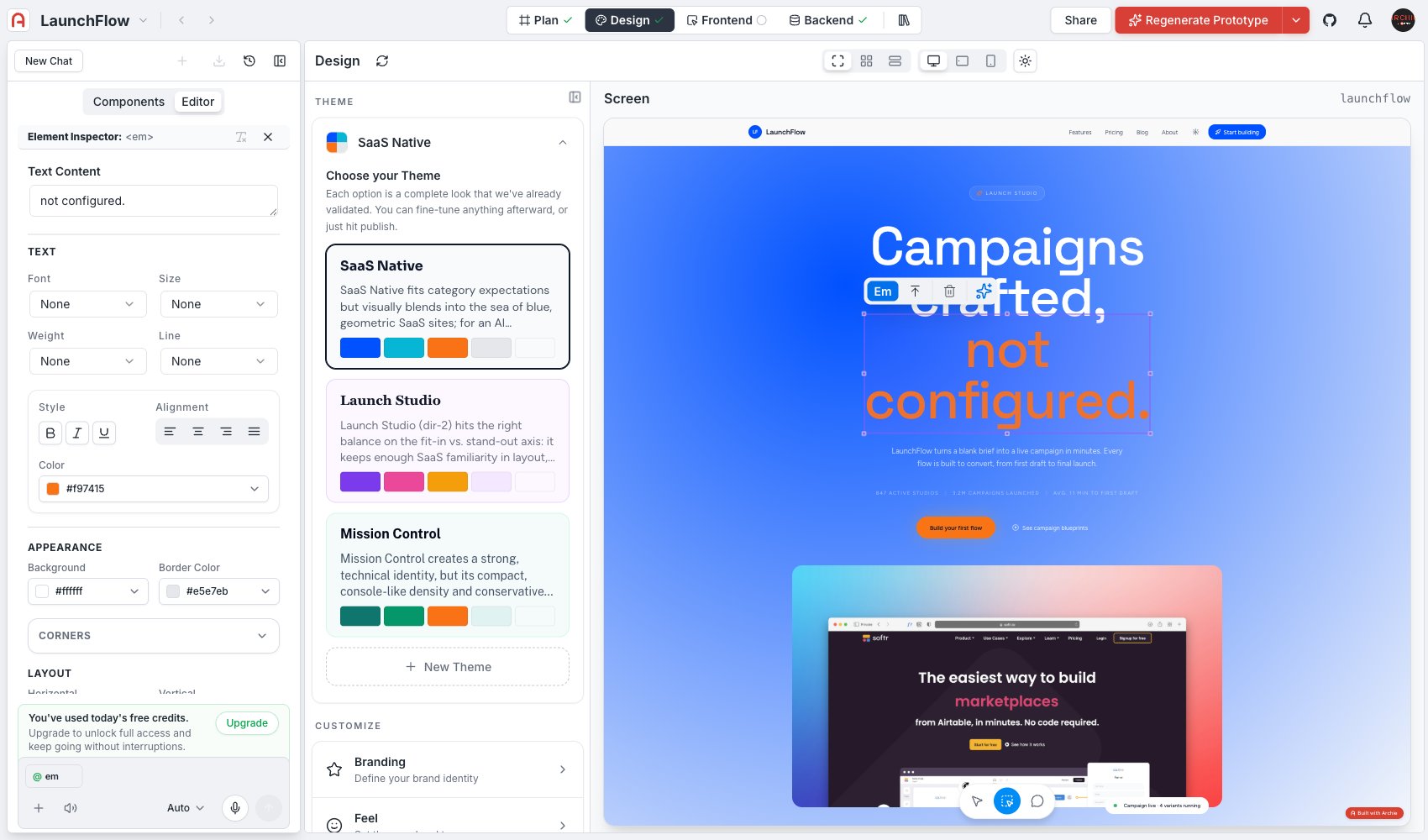
Switch to Select / Inspect, then click any element in the preview — a heading, a button, a card. A small floating toolbar appears on the element itself, showing:- Its tag (for example,
h1) - Select parent element — move selection up to the containing element
- Remove element — delete it
- Open prompt mode — describe a change for this specific element in natural language; see Asking Archie for a change below
The Element Inspector
The inspector is scoped to the selected element and typically includes:- Text Content — the element’s text, editable directly, for elements that hold text
- Text — Font, Size, Weight, and Line height
- Style — bold, italic, underline, and text alignment
- Color — the element’s text or icon color
- Appearance — Background and Border Color
- Corners — border radius
- Layout — horizontal and vertical alignment
- Position
Asking Archie for a change
You do not have to use the inspector for every change. For anything easier to describe than to dial in by hand — swapping an image, rewording a headline, “make this card feel less crowded” — ask Archie in natural language instead.Prompt mode
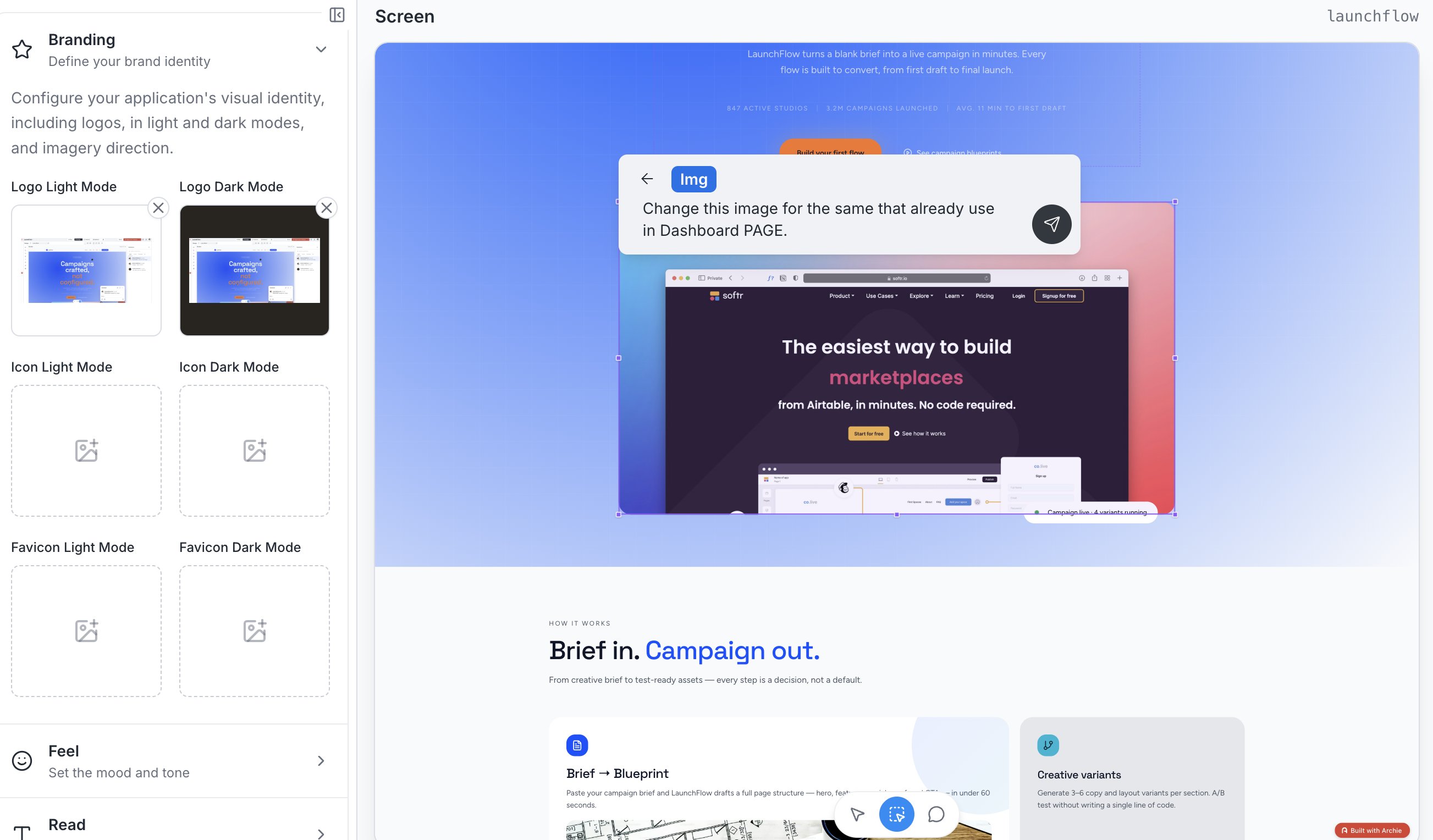
Click the sparkle icon on a selected element’s floating toolbar to open prompt mode: a small box anchored right on the canvas, next to the element. It shows the element’s tag (for example,Img) so there’s no ambiguity about what you’re pointing at, plus a text field to describe the change and a back arrow to return to the inspector.
The chat panel
You can also work from the main chat panel on the left. With an element selected, it shows a reference chip for it (for example,@h1) — type an instruction there and it applies to that element specifically, the same way Talking to Archie works in the frontend. Without a selection, chat instructions apply to the screen or app more broadly.
Use the inspector for precise, mechanical changes (an exact color, a specific font weight). Use prompt mode or the chat panel for changes that are easier to describe than to dial in by hand.
For leaving feedback instead of making a change directly, see Comments.
Screen-wide vs. global changes
Edits made here — through the inspector or through chat with an element selected — apply to that one screen. For a change that should apply everywhere (a color, a font, a corner radius across the whole app), use Theme and Customize instead: it updates the underlying design values, and every screen picks up the change at once.FAQ
Should I set my theme and design values before or after editing individual screens?
Should I set my theme and design values before or after editing individual screens?
Before. Theme, Color, Feel, and Polish apply everywhere at once — deciding those first means less rework than fixing one-off edits after a global change lands.
What does 'Open prompt mode' do differently from typing in the chat panel?
What does 'Open prompt mode' do differently from typing in the chat panel?
Both send an instruction to Archie. Opening prompt mode from a selected element’s toolbar guarantees the instruction is scoped to that exact element, which is useful when a screen has several similar-looking elements.