> ## Documentation Index
> Fetch the complete documentation index at: https://archie.com/docs/llms.txt
> Use this file to discover all available pages before exploring further.
# Creating a task
> Define a scheduled task in the Backend Console: name it, choose a target, set a schedule, and tune retries, timeout, and overlap behavior.
Create a task from **Backend → Tasks → New Task**. The form is grouped into the target, the schedule, and the execution options — this page walks each one.
## Name the task
Give the task a clear **name** and an optional **description**. Both are for you and your team — the name is how the task shows up in the list and the run history. You can also add **tags** to group and filter related tasks.
## Choose a target
The target is what the task calls each time it fires. The **Service type** dropdown offers four options.
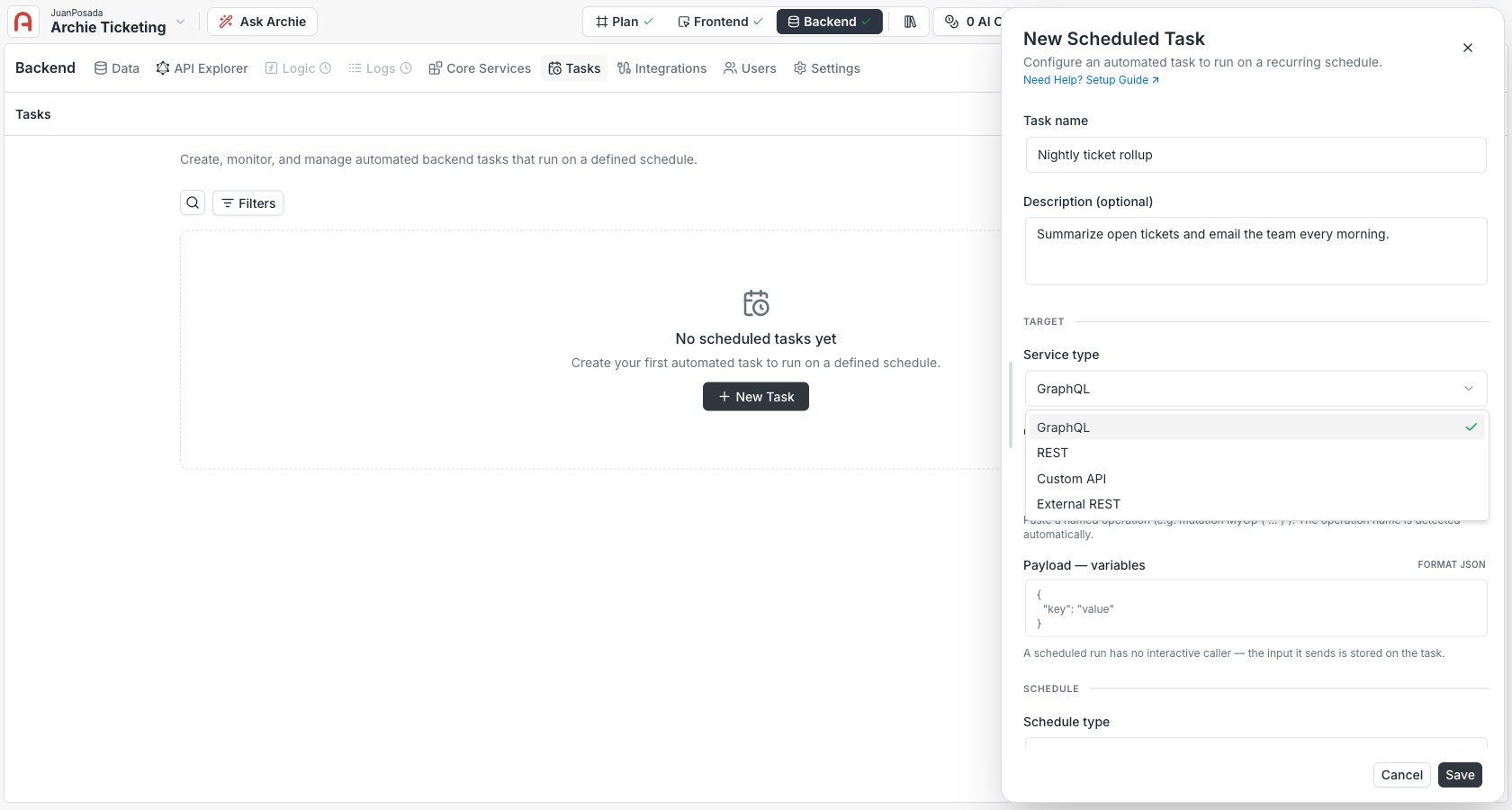 Write a GraphQL **operation** — a query or mutation — directly, with optional **variables** as a JSON object. The operation runs against your project's GraphQL API. There's no saved-operation catalog; you author the operation on the task.
 Reference a gateway route on your project by its **route ID** and **path**, with an HTTP **method**, an optional JSON **body**, and optional **headers**. This calls an internal [REST](/docs/features/backend/rest-api-explorer/overview) or [Custom API](/docs/features/backend/app-services/custom-apis) route by reference — never an arbitrary URL.
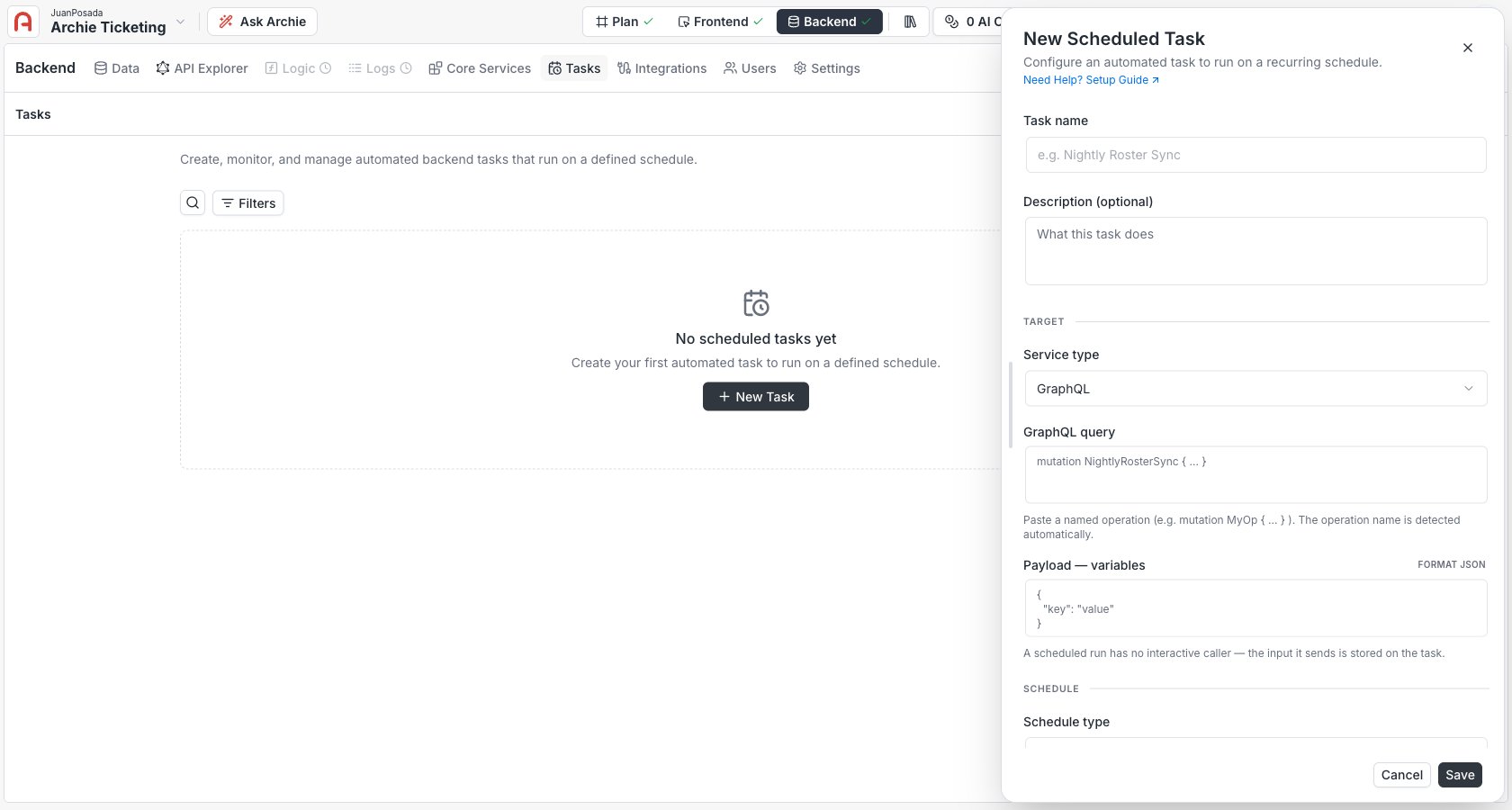
Call an arbitrary public API. Enter an absolute `https://` URL, an HTTP method, and an optional body and headers. Requests are screened by an anti-SSRF guard: only public hosts are allowed — private, loopback, and cloud-metadata addresses are blocked.
Reference a gateway route on your project by its **route ID** and **path**, with an HTTP **method**, an optional JSON **body**, and optional **headers**. This calls an internal [REST](/docs/features/backend/rest-api-explorer/overview) or [Custom API](/docs/features/backend/app-services/custom-apis) route by reference — never an arbitrary URL.
Call an arbitrary public API. Enter an absolute `https://` URL, an HTTP method, and an optional body and headers. Requests are screened by an anti-SSRF guard: only public hosts are allowed — private, loopback, and cloud-metadata addresses are blocked.
 ## Set the schedule
Pick how the task fires. There are three modes.
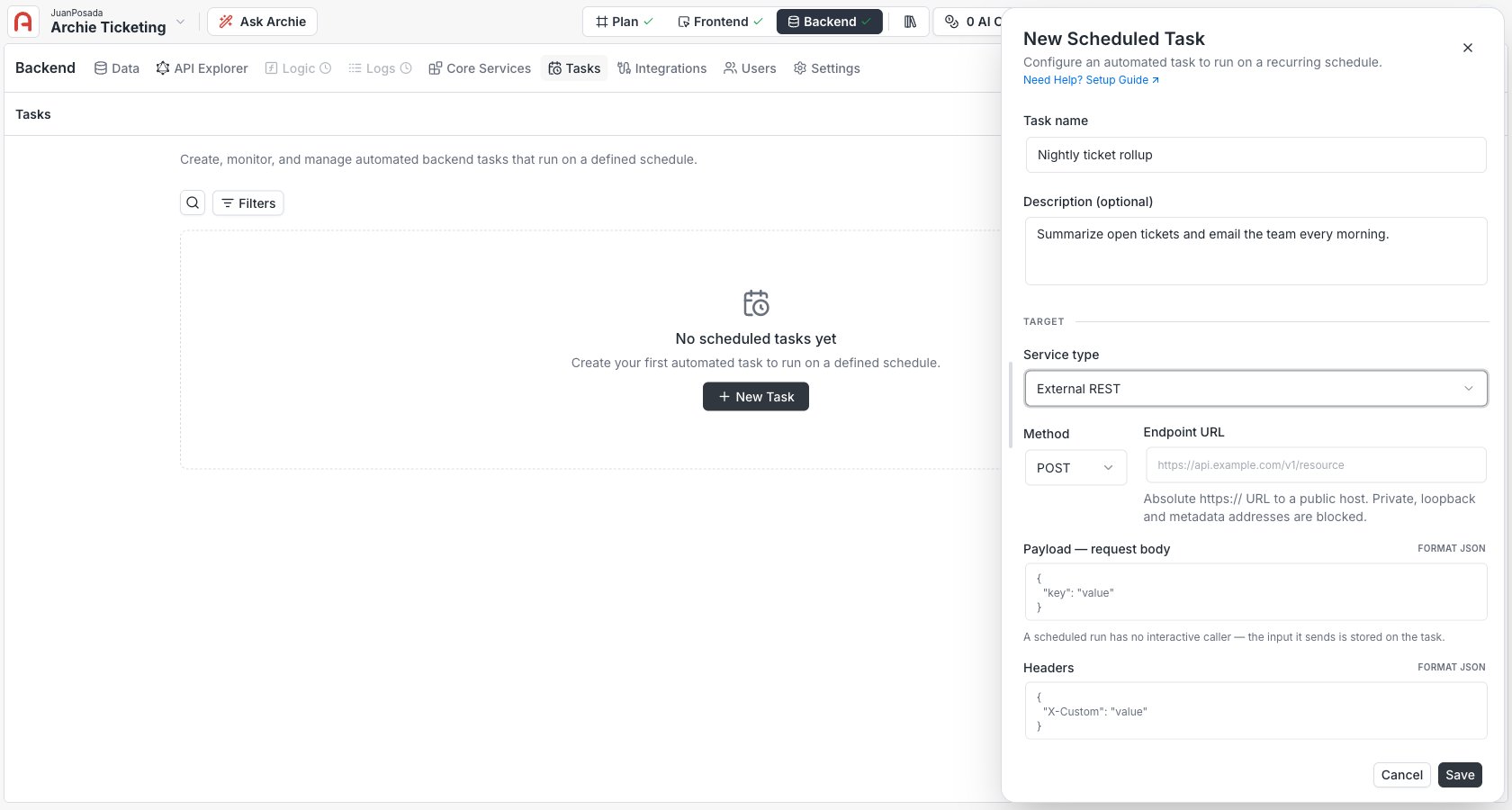
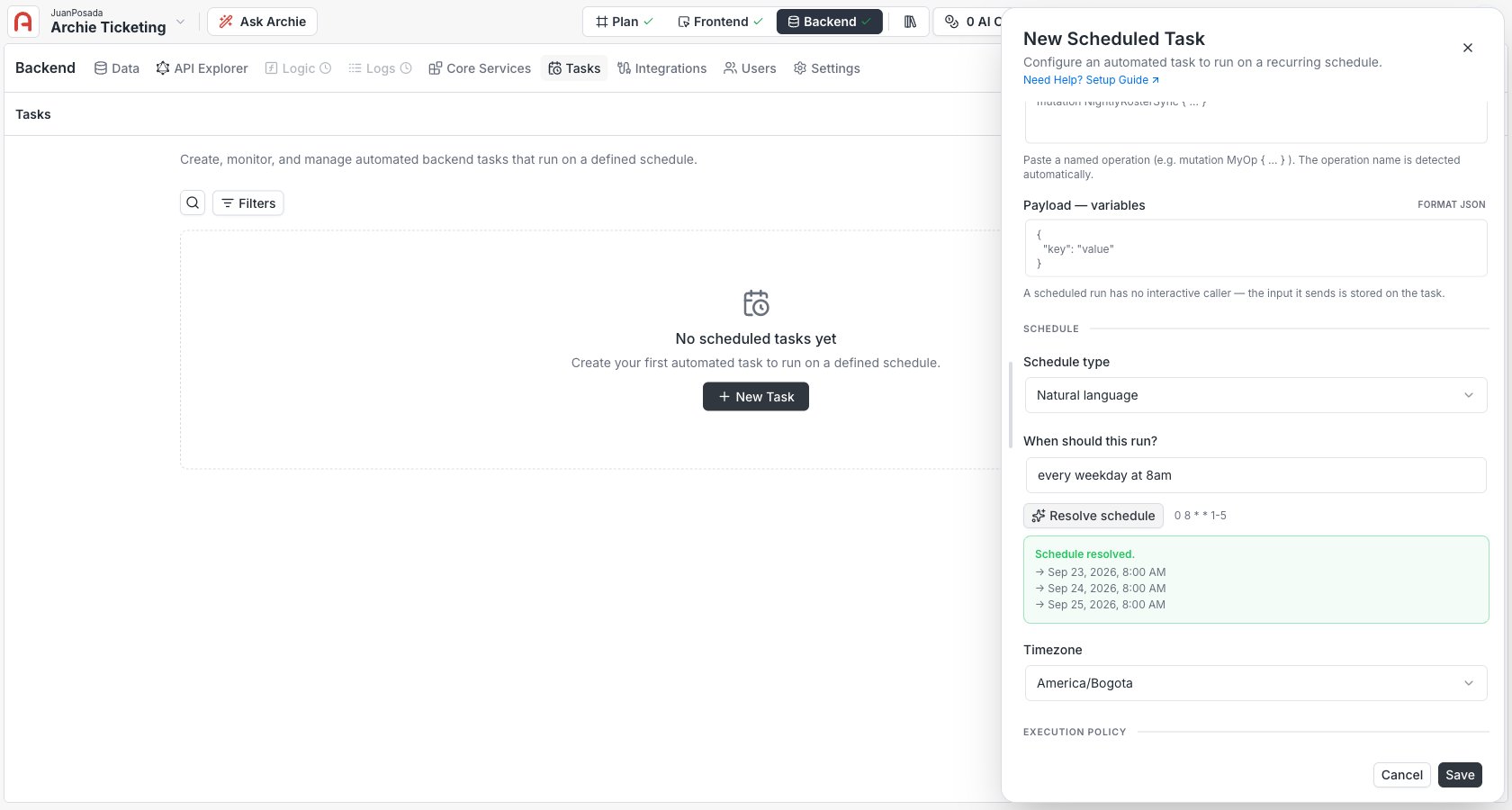
Describe the schedule in plain words — for example, *"every weekday at 8am"* — and click **Resolve schedule**. Archie fills in the cron expression and previews the next few fire times; review both before saving.
## Set the schedule
Pick how the task fires. There are three modes.
Describe the schedule in plain words — for example, *"every weekday at 8am"* — and click **Resolve schedule**. Archie fills in the cron expression and previews the next few fire times; review both before saving.
 Enter a cron expression directly, plus the **timezone** it runs in. The task fires on that recurring schedule.
Pick a single date and time. The task fires exactly once, then moves to **Completed**.
Enter a cron expression directly, plus the **timezone** it runs in. The task fires on that recurring schedule.
Pick a single date and time. The task fires exactly once, then moves to **Completed**.
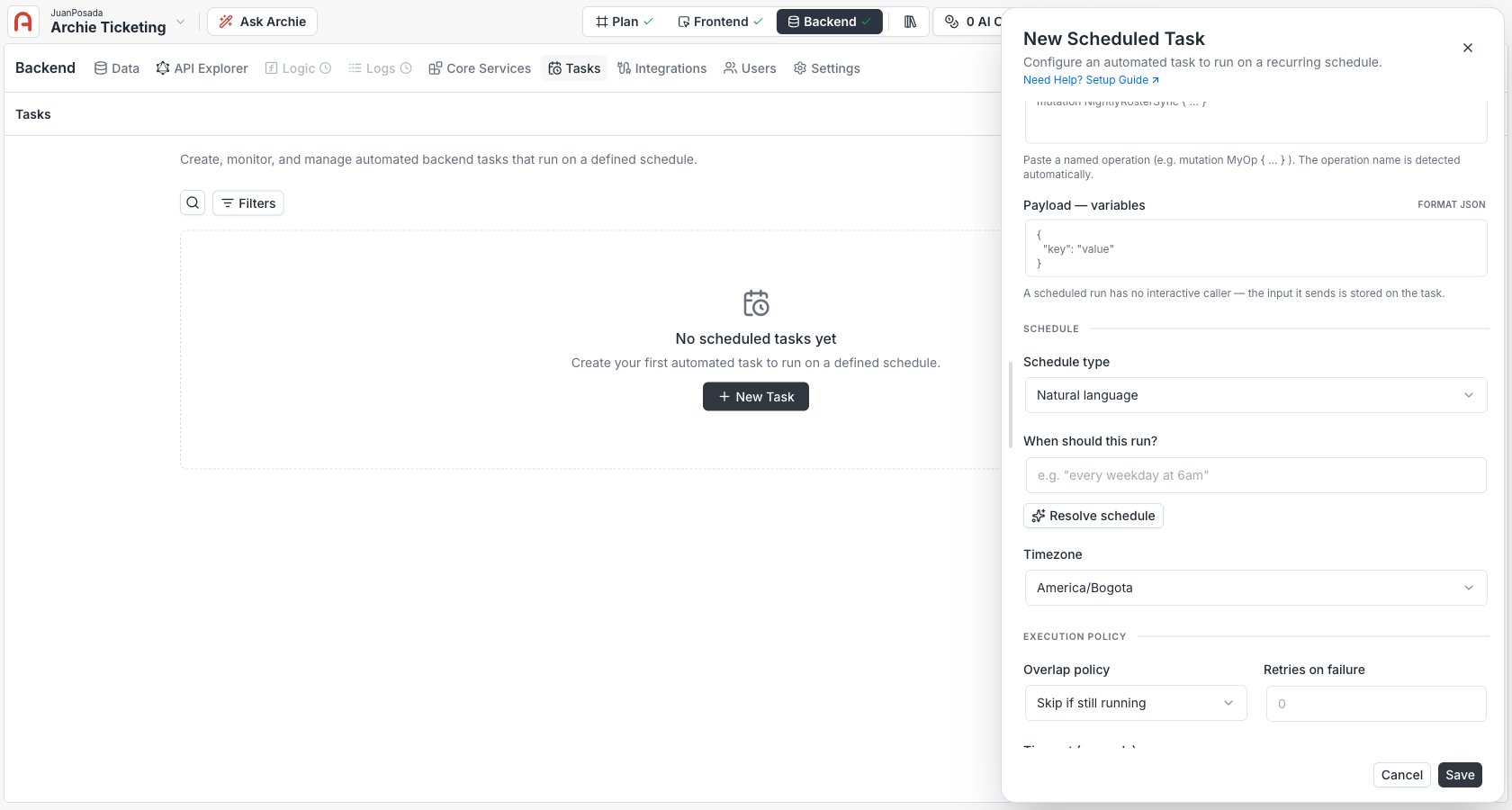 The **timezone** is an IANA zone (for example `America/Bogota`). Cron schedules are evaluated in that zone, so daylight-saving shifts are handled correctly. If you don't set one, the schedule runs in UTC.
Natural-language resolution just fills in the cron expression — it's a convenience on top of the cron mode, not a separate kind of schedule. Once resolved, the task stores and runs the plain cron expression.
## Execution options
Tune how each run behaves.
| Option | What it controls |
| - | - |
| **Overlap policy** | What happens when a run is still going and the next fire arrives: **Skip if still running** drops the new fire, **Queue** runs it after the current one finishes, **Allow** lets them run concurrently. |
| **Retries on failure** | How many times to retry a failed run. |
| **Timeout (seconds)** | How long a single run may take before it's marked timed out. Defaults to 30. |
Choose **Skip if still running** or **Queue** for jobs that must not run twice at once — a nightly rollup, a job that writes to the same rows. Use **Allow** only when concurrent runs are genuinely safe.
## Provide the execution credential
Add an **execution credential** — the `Authorization` value sent when the task dispatches (for example `Bearer `). For a GraphQL, REST, or Custom API target, create a role-bound key under [Settings → API Keys](/docs/features/backend/settings/api-keys) scoped to exactly what the task needs. For an External REST target the field is optional — only fill it in if the third-party API requires that header.
The **timezone** is an IANA zone (for example `America/Bogota`). Cron schedules are evaluated in that zone, so daylight-saving shifts are handled correctly. If you don't set one, the schedule runs in UTC.
Natural-language resolution just fills in the cron expression — it's a convenience on top of the cron mode, not a separate kind of schedule. Once resolved, the task stores and runs the plain cron expression.
## Execution options
Tune how each run behaves.
| Option | What it controls |
| - | - |
| **Overlap policy** | What happens when a run is still going and the next fire arrives: **Skip if still running** drops the new fire, **Queue** runs it after the current one finishes, **Allow** lets them run concurrently. |
| **Retries on failure** | How many times to retry a failed run. |
| **Timeout (seconds)** | How long a single run may take before it's marked timed out. Defaults to 30. |
Choose **Skip if still running** or **Queue** for jobs that must not run twice at once — a nightly rollup, a job that writes to the same rows. Use **Allow** only when concurrent runs are genuinely safe.
## Provide the execution credential
Add an **execution credential** — the `Authorization` value sent when the task dispatches (for example `Bearer `). For a GraphQL, REST, or Custom API target, create a role-bound key under [Settings → API Keys](/docs/features/backend/settings/api-keys) scoped to exactly what the task needs. For an External REST target the field is optional — only fill it in if the third-party API requires that header.
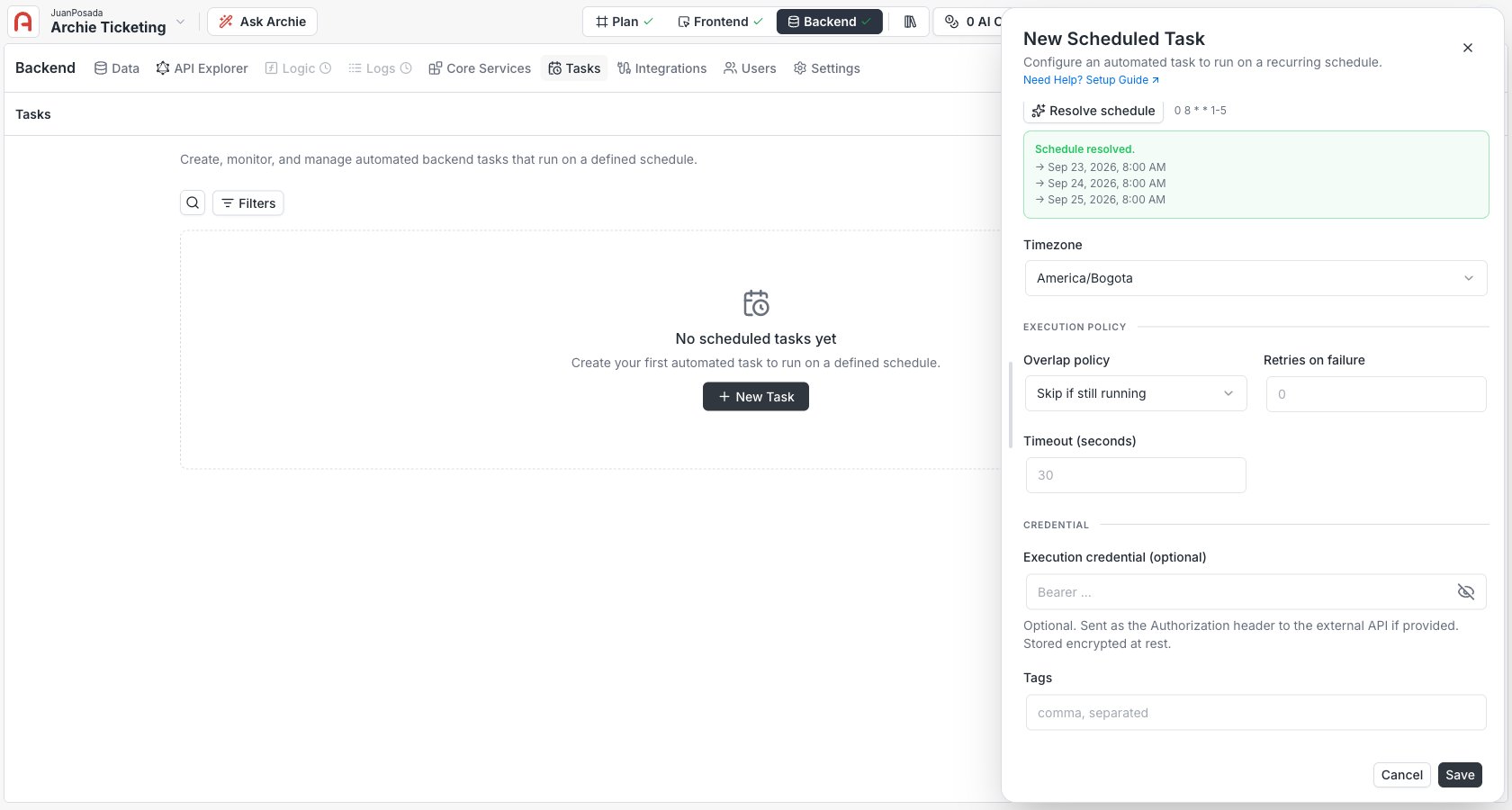 * On **create**, fill in a credential whenever the target needs one to authenticate.
* On **edit**, it's optional: leave it blank to keep the stored one. The credential is write-only — it's stored encrypted and never shown again.
Scope the API key to the minimum the task needs. A scheduled task runs unattended with whatever the key can do, so an over-scoped key is a standing risk.
## Save
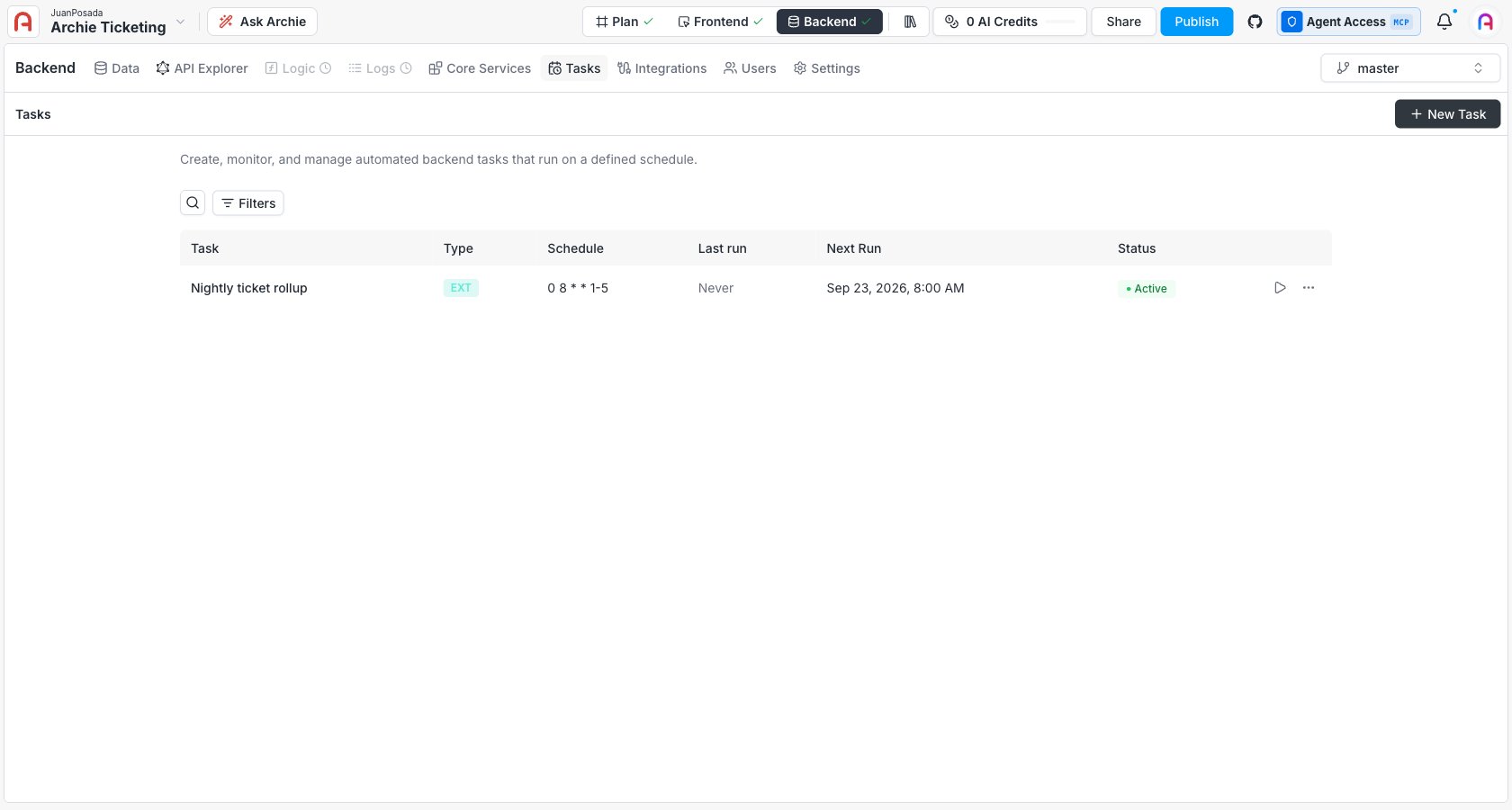
Saving creates the trigger in **Active** state and schedules its next fire. From the task list you can then [run it on demand, suspend it, or review its history](/docs/features/backend/scheduled-tasks/run-history).
* On **create**, fill in a credential whenever the target needs one to authenticate.
* On **edit**, it's optional: leave it blank to keep the stored one. The credential is write-only — it's stored encrypted and never shown again.
Scope the API key to the minimum the task needs. A scheduled task runs unattended with whatever the key can do, so an over-scoped key is a standing risk.
## Save
Saving creates the trigger in **Active** state and schedules its next fire. From the task list you can then [run it on demand, suspend it, or review its history](/docs/features/backend/scheduled-tasks/run-history).
 ## Editing a task
Open a task and edit any field. Two things to know:
* Leaving the **API key** blank keeps the existing credential — you don't re-enter it to change the schedule.
* Edits use optimistic concurrency: if someone else changed the task since you opened it, your save is rejected so you don't overwrite their change. Reload and reapply.
## FAQ
No. Use the natural-language mode — describe the schedule in words and click **Resolve schedule** to get a cron expression and a preview of the next fire times. Cron mode is there when you want exact control.
Yes — that's what the execution credential is for. The task sends the value you give it as the `Authorization` header on every dispatch. Scope that key to the task's needs.
External REST only allows public `https://` hosts. Private, loopback, and cloud-metadata addresses are blocked by the anti-SSRF guard. To call something inside your project, use a REST or Custom API target instead.
It moves to **Completed** and never fires again. It stays in the list with its run history until you delete (archive) it.
## Editing a task
Open a task and edit any field. Two things to know:
* Leaving the **API key** blank keeps the existing credential — you don't re-enter it to change the schedule.
* Edits use optimistic concurrency: if someone else changed the task since you opened it, your save is rejected so you don't overwrite their change. Reload and reapply.
## FAQ
No. Use the natural-language mode — describe the schedule in words and click **Resolve schedule** to get a cron expression and a preview of the next fire times. Cron mode is there when you want exact control.
Yes — that's what the execution credential is for. The task sends the value you give it as the `Authorization` header on every dispatch. Scope that key to the task's needs.
External REST only allows public `https://` hosts. Private, loopback, and cloud-metadata addresses are blocked by the anti-SSRF guard. To call something inside your project, use a REST or Custom API target instead.
It moves to **Completed** and never fires again. It stays in the list with its run history until you delete (archive) it.