> ## Documentation Index
> Fetch the complete documentation index at: https://archie.com/docs/llms.txt
> Use this file to discover all available pages before exploring further.
# Exporting data
> Download the rows in a table as a CSV file. Filters and visible columns control exactly what gets exported.
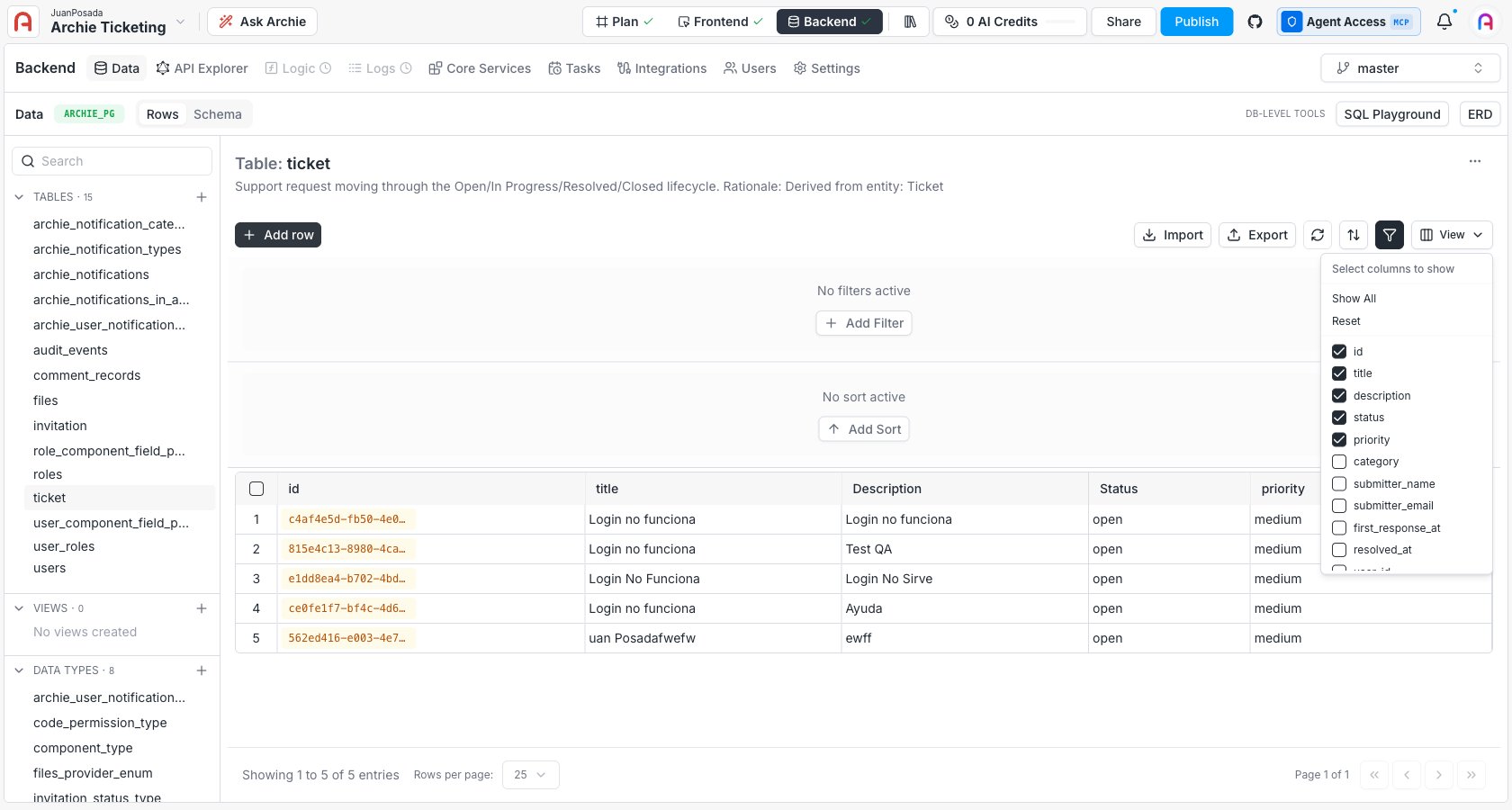
The CSV exporter downloads the rows in a table as a CSV file. The **columns currently visible** in the Data Viewer control what gets included, and the export dialog lets you choose between the rows matching your active filters or every row in the table.
## Step-by-step
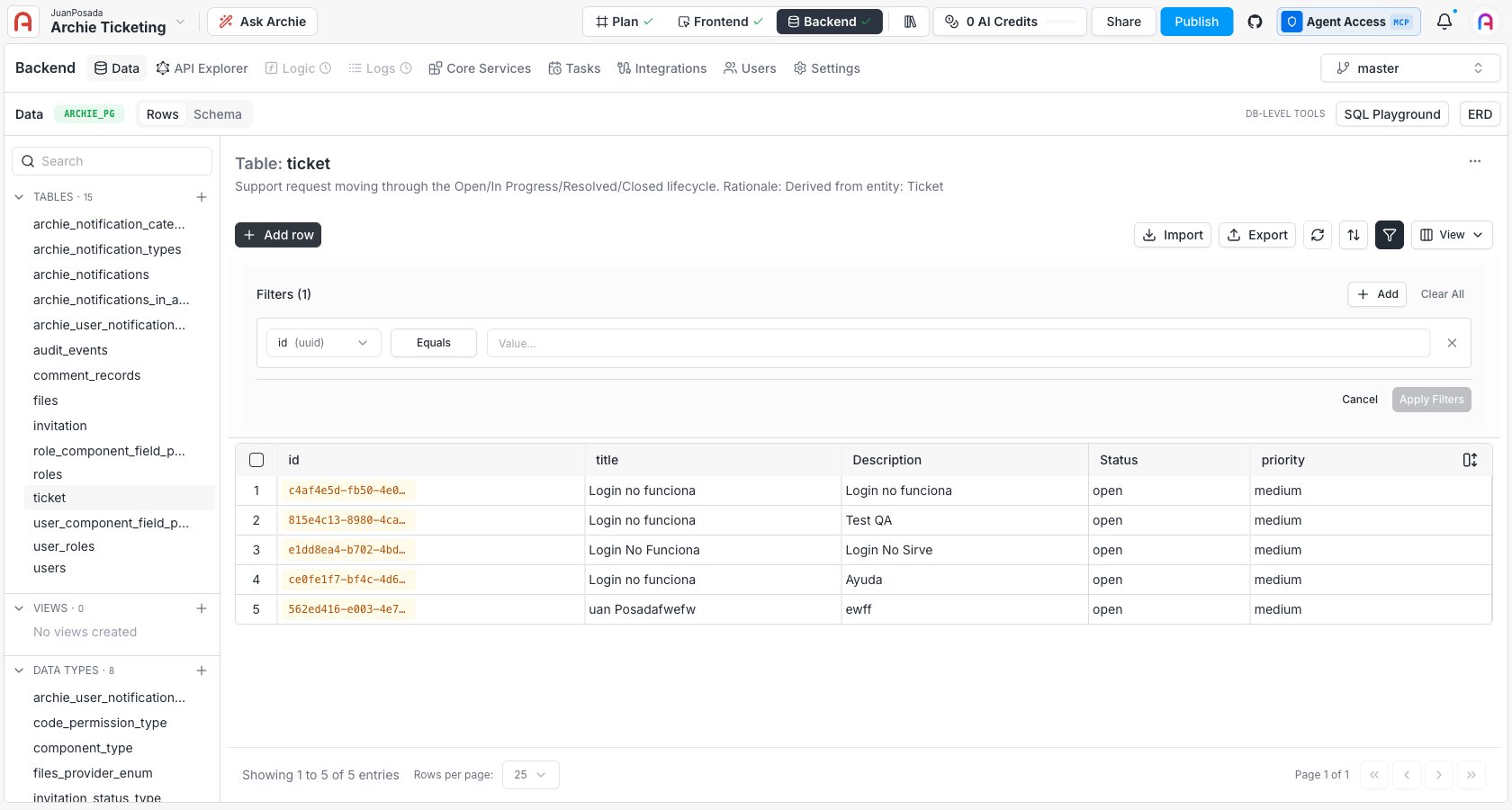
Open the table on the **Data** tab and apply filters until the grid shows the rows you're interested in. This step is optional — you can also export everything regardless of filters.
 Click the **View** dropdown in the toolbar and toggle off any fields you don't want in the file. Only the columns currently visible in the grid are included in the export.
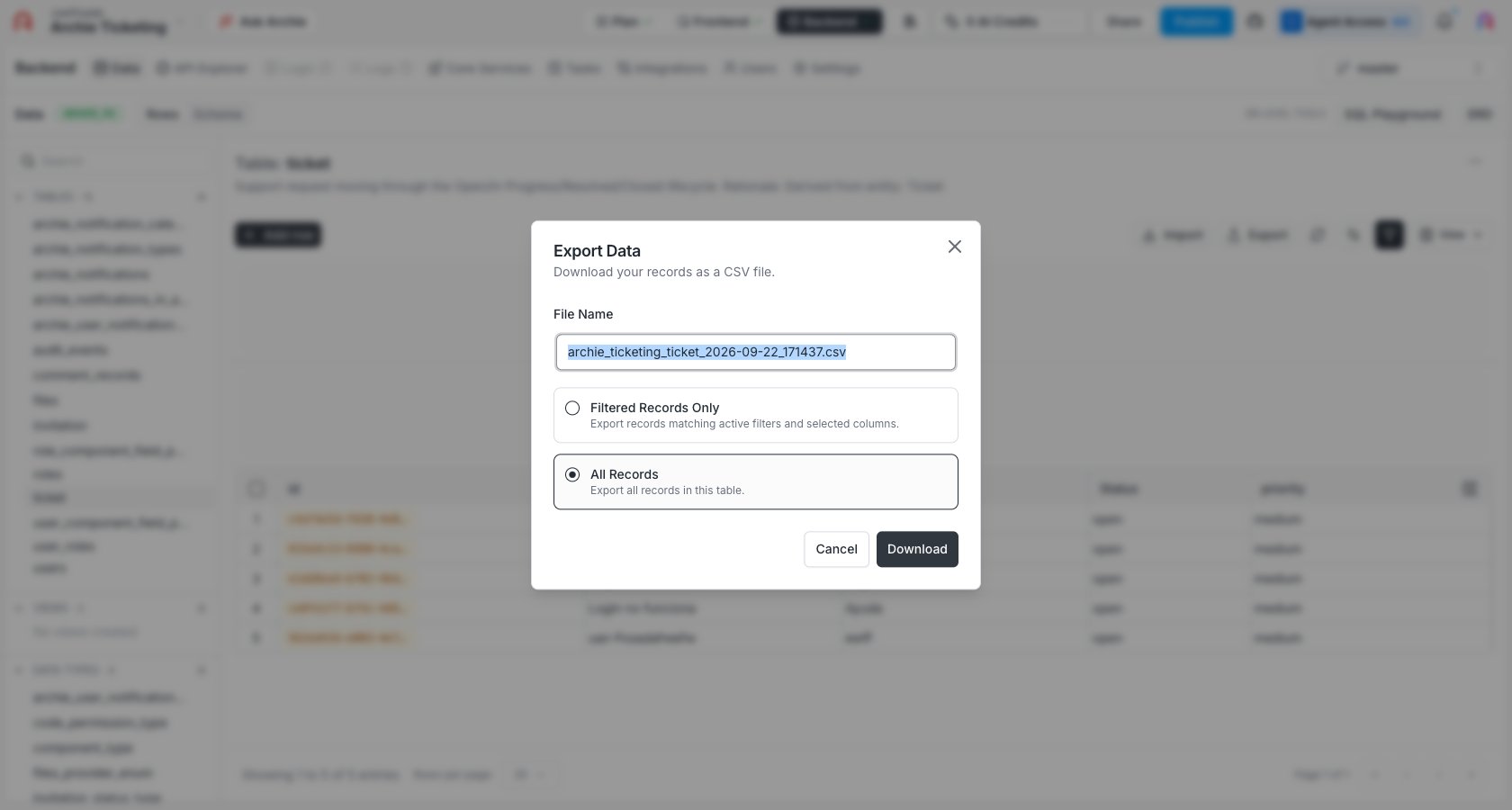
 The **Export Data** dialog opens. Edit the **File Name** if you want, then choose **Filtered Records Only** (matches your active filters and selected columns) or **All Records** (every row in the table, still limited to the visible columns). Click **Download** to save the CSV to your machine.
 ## What the file contains
* **Header row** — the field names of the included columns.
* **One row per record** — matching the current filtered view.
* **Date and timestamp formatting** — ISO 8601 (`2025-03-14T10:30:00Z` for timestamps with time zone).
* **Relationship fields** — the primary key of the related row, not the related row's full content.
* **JSONB fields** — the JSON value as a quoted string.
If you need a different shape — for example, joining in fields from a related table — define a [view](/docs/features/backend/data-model/views) that returns the columns you want, then export the view.
## Permissions
Exports respect the per-role read permissions configured in [Role-Based Access](/docs/features/backend/app-services/role-based-access). A user can only export rows and fields they're allowed to read.
## FAQ
Toggle off the columns you don't want from the **View** dropdown. The export uses the visible-column set as its column list.
Apply filters in the toolbar, then pick **Filtered Records Only** in the Export Data dialog. Pick **All Records** to ignore active filters and export the whole table.
Define a [view](/docs/features/backend/data-model/views) whose `SELECT` joins the related tables, then export the view. The CSV exporter operates on a single table or view at a time.
Very large exports may take a while to generate. For multi-million-row exports, consider scripting the dump through a custom function or the SQL Playground.
`id` is visible by default, so it's included unless you hide it. `created_by`, `updated_by`, `created_at`, and `updated_at` are hidden by default — toggle them on from the **View** dropdown if you want them in the file.
## What the file contains
* **Header row** — the field names of the included columns.
* **One row per record** — matching the current filtered view.
* **Date and timestamp formatting** — ISO 8601 (`2025-03-14T10:30:00Z` for timestamps with time zone).
* **Relationship fields** — the primary key of the related row, not the related row's full content.
* **JSONB fields** — the JSON value as a quoted string.
If you need a different shape — for example, joining in fields from a related table — define a [view](/docs/features/backend/data-model/views) that returns the columns you want, then export the view.
## Permissions
Exports respect the per-role read permissions configured in [Role-Based Access](/docs/features/backend/app-services/role-based-access). A user can only export rows and fields they're allowed to read.
## FAQ
Toggle off the columns you don't want from the **View** dropdown. The export uses the visible-column set as its column list.
Apply filters in the toolbar, then pick **Filtered Records Only** in the Export Data dialog. Pick **All Records** to ignore active filters and export the whole table.
Define a [view](/docs/features/backend/data-model/views) whose `SELECT` joins the related tables, then export the view. The CSV exporter operates on a single table or view at a time.
Very large exports may take a while to generate. For multi-million-row exports, consider scripting the dump through a custom function or the SQL Playground.
`id` is visible by default, so it's included unless you hide it. `created_by`, `updated_by`, `created_at`, and `updated_at` are hidden by default — toggle them on from the **View** dropdown if you want them in the file.