> ## Documentation Index
> Fetch the complete documentation index at: https://archie.com/docs/llms.txt
> Use this file to discover all available pages before exploring further.
# ERD
> A live, auto-generated entity-relationship diagram of your project's database — every table, field, type, and relationship, kept in sync as your schema changes.
The **ERD** (Entity-Relationship Diagram) is a visual map of your project's database. It's generated directly from your schema, so it's always current — no separate diagramming tool to keep in sync.
To open it, go to a table on the **Data** page (**Rows** or **Schema** tab) and click **ERD** under **DB-Level Tools**, next to **SQL Playground**.
 ## What you're looking at
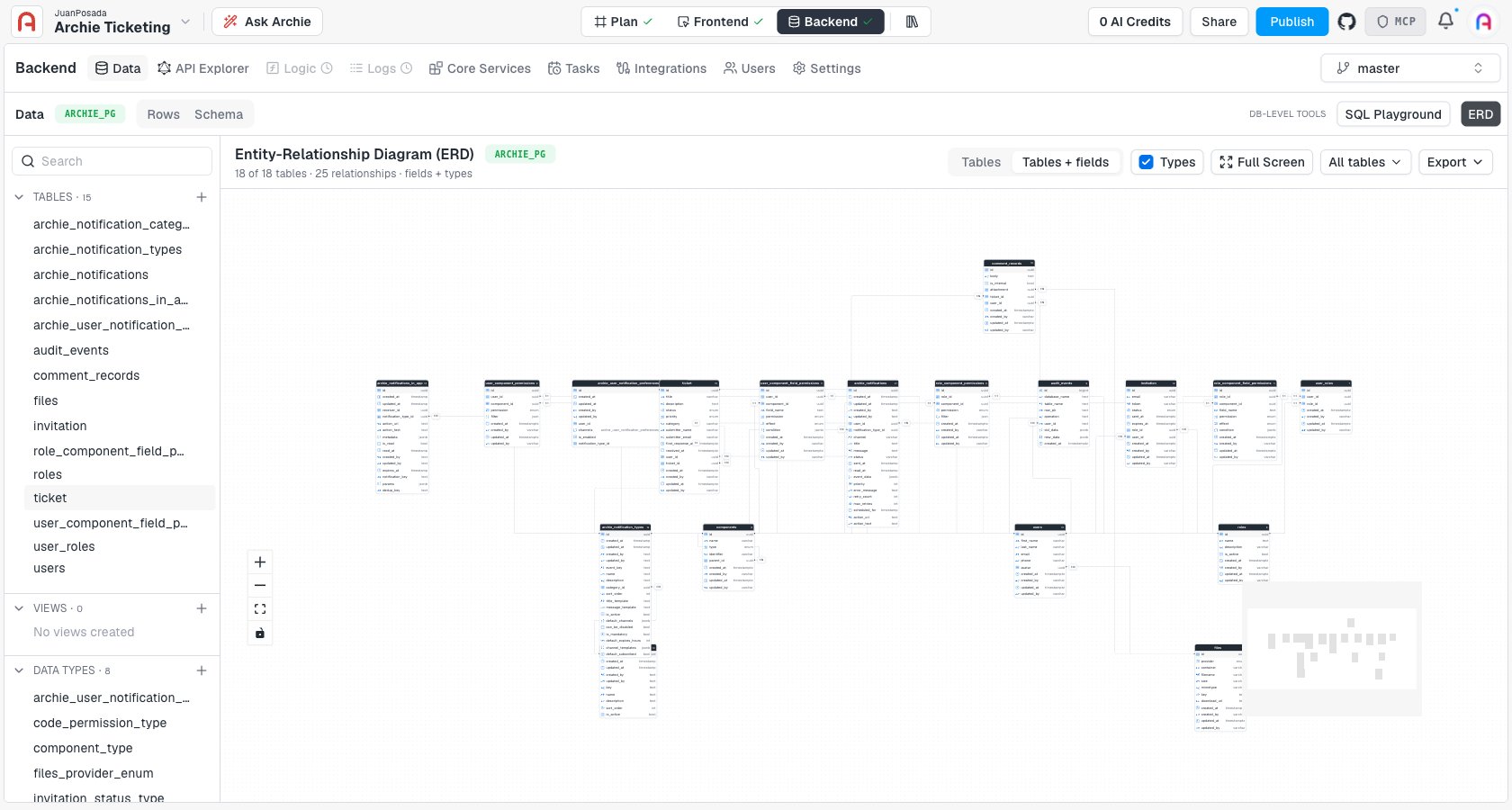
Each box is a table, with its column names and data types. Lines connect related tables, and a small badge on each line — **1:1**, **1:N** — shows the cardinality of that relationship. The header bar reports the diagram's scope at a glance, for example "18 of 18 tables · 25 relationships · fields + types."
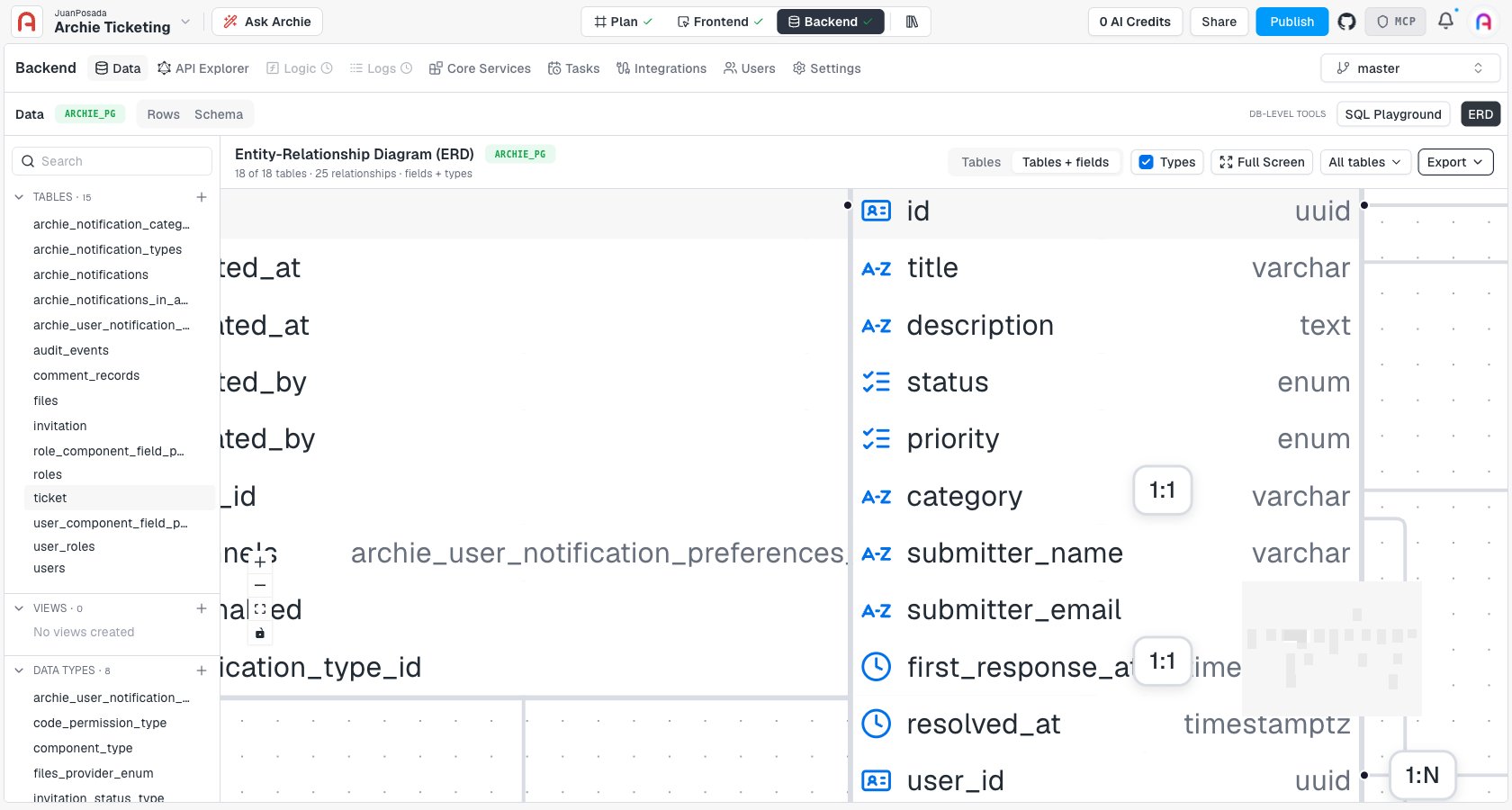
Zoom into a table and each field shows a type icon: a key icon for `uuid` identifiers, **A-Z** for text fields, a checklist icon for `enum`, and a clock icon for date/time fields.
## What you're looking at
Each box is a table, with its column names and data types. Lines connect related tables, and a small badge on each line — **1:1**, **1:N** — shows the cardinality of that relationship. The header bar reports the diagram's scope at a glance, for example "18 of 18 tables · 25 relationships · fields + types."
Zoom into a table and each field shows a type icon: a key icon for `uuid` identifiers, **A-Z** for text fields, a checklist icon for `enum`, and a clock icon for date/time fields.
 ## Detail level
Two toggles in the toolbar control how much the diagram shows:
* **Tables** / **Tables + fields** — collapse boxes to just their table name, or expand them to list every column.
* **Types** — show or hide the data type next to each field.
## Navigating a large schema
For projects with many tables, the diagram gives you a few ways to manage the view:
* **Zoom and pan** — scroll to zoom, drag to pan. The **+** / **−** controls and a fit-to-screen button sit in the bottom-left corner, along with a minimap for jumping around a large diagram.
* **Full Screen** — expand the diagram to the whole browser window.
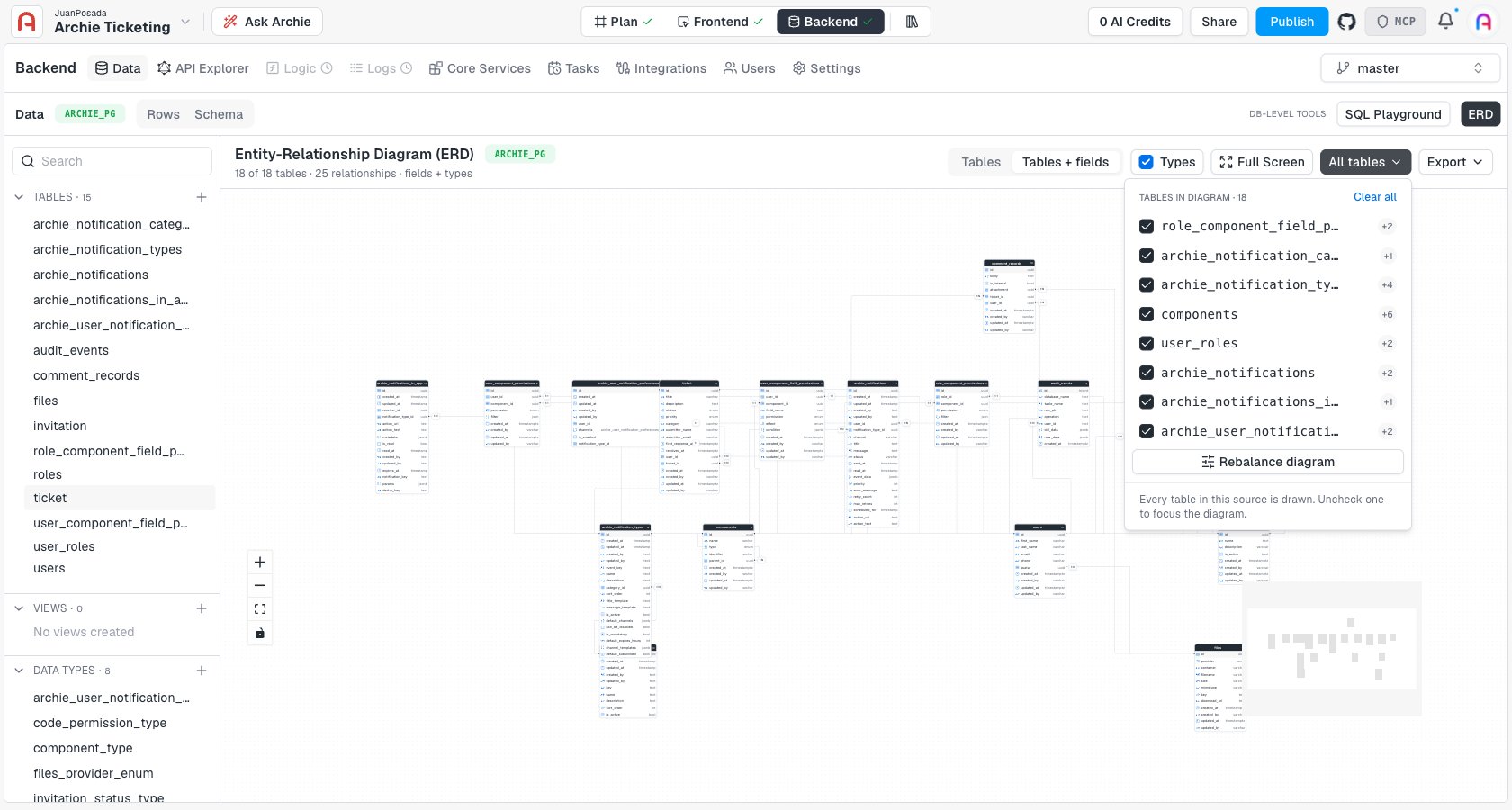
* **All tables filter** — a dropdown listing every table in the diagram with a checkbox next to each. Uncheck a table to drop it from the view and focus on a subset of your schema; a **Rebalance diagram** button re-lays-out the remaining tables, and **Clear all** hides everything so you can build the view up table by table.
## Detail level
Two toggles in the toolbar control how much the diagram shows:
* **Tables** / **Tables + fields** — collapse boxes to just their table name, or expand them to list every column.
* **Types** — show or hide the data type next to each field.
## Navigating a large schema
For projects with many tables, the diagram gives you a few ways to manage the view:
* **Zoom and pan** — scroll to zoom, drag to pan. The **+** / **−** controls and a fit-to-screen button sit in the bottom-left corner, along with a minimap for jumping around a large diagram.
* **Full Screen** — expand the diagram to the whole browser window.
* **All tables filter** — a dropdown listing every table in the diagram with a checkbox next to each. Uncheck a table to drop it from the view and focus on a subset of your schema; a **Rebalance diagram** button re-lays-out the remaining tables, and **Clear all** hides everything so you can build the view up table by table.
 ## Exporting
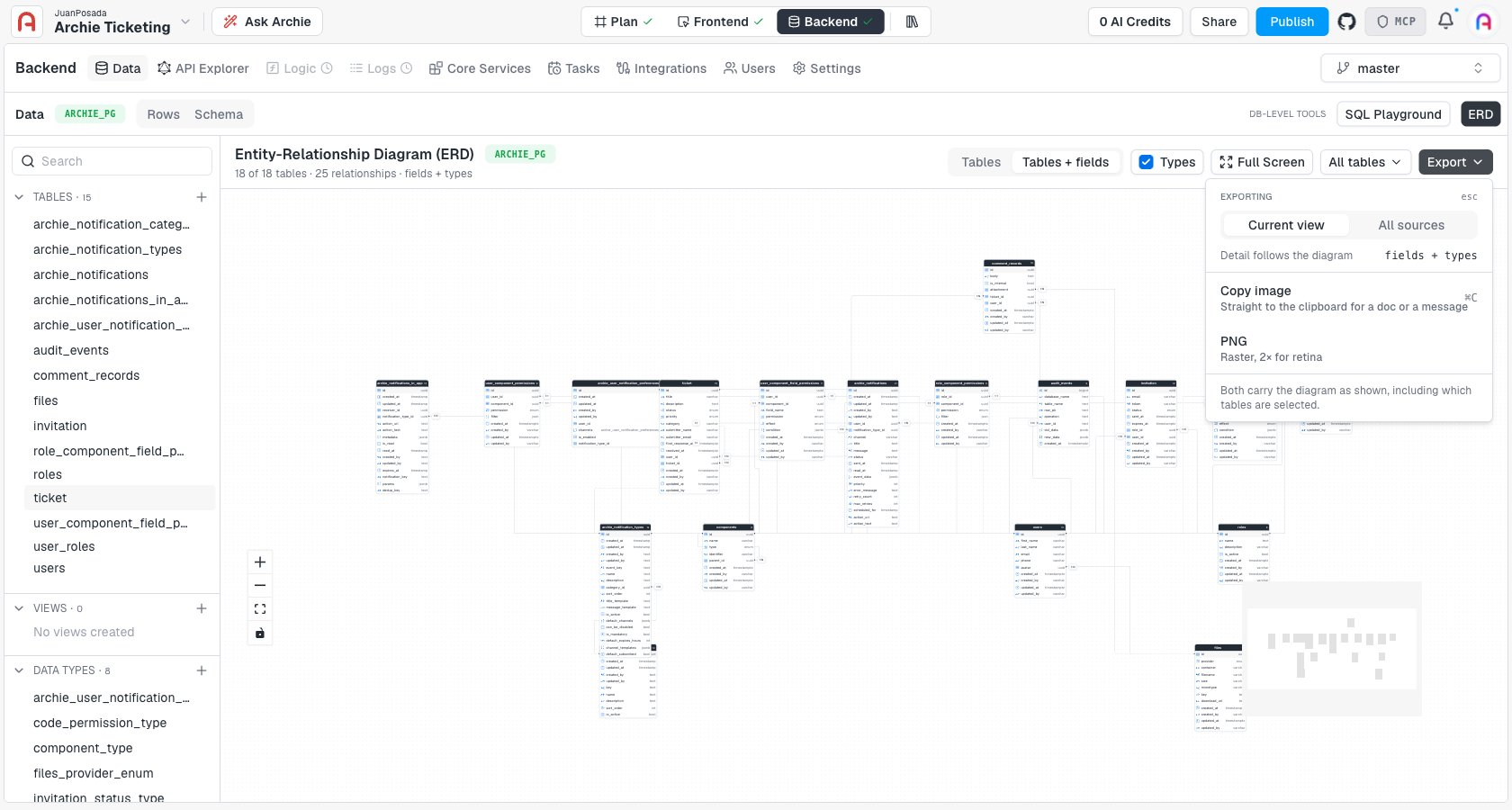
The **Export** dropdown turns the diagram into something you can paste into a doc or share with your team:
* **Current view** / **All sources** — export just what's on screen, or every table regardless of the current filter.
* **Copy image** (`⌘C` / `Ctrl+C`) — copies the diagram straight to your clipboard.
* **PNG** — downloads a 2x, retina-resolution raster image.
Both export options carry the diagram exactly as shown, including whichever tables are selected and whether fields and types are visible.
## Exporting
The **Export** dropdown turns the diagram into something you can paste into a doc or share with your team:
* **Current view** / **All sources** — export just what's on screen, or every table regardless of the current filter.
* **Copy image** (`⌘C` / `Ctrl+C`) — copies the diagram straight to your clipboard.
* **PNG** — downloads a 2x, retina-resolution raster image.
Both export options carry the diagram exactly as shown, including whichever tables are selected and whether fields and types are visible.
 ## Per-environment
The ERD reflects the schema of whichever [environment](/docs/features/backend/environments/overview) is currently selected. Switch environments to compare a branch's schema changes against `master` before merging.
## FAQ
No. The ERD is read-only — it's a visualization of the schema, not an editor. Make schema changes on the [Data](/docs/features/backend/data-model/overview) page's Schema tab.
Yes. It's generated live from the current schema, so adding a table or field, or changing a relationship, is reflected the next time you open or refresh the ERD.
They show the cardinality of the relationship between the two connected tables — one-to-one or one-to-many — based on how the [relationship field](/docs/features/backend/data-model/fields/relationship) is configured.
Yes. Use the **All tables** filter to uncheck the tables you don't want, then export with the scope set to **Current view** — only the tables still checked are included.
## Per-environment
The ERD reflects the schema of whichever [environment](/docs/features/backend/environments/overview) is currently selected. Switch environments to compare a branch's schema changes against `master` before merging.
## FAQ
No. The ERD is read-only — it's a visualization of the schema, not an editor. Make schema changes on the [Data](/docs/features/backend/data-model/overview) page's Schema tab.
Yes. It's generated live from the current schema, so adding a table or field, or changing a relationship, is reflected the next time you open or refresh the ERD.
They show the cardinality of the relationship between the two connected tables — one-to-one or one-to-many — based on how the [relationship field](/docs/features/backend/data-model/fields/relationship) is configured.
Yes. Use the **All tables** filter to uncheck the tables you don't want, then export with the scope set to **Current view** — only the tables still checked are included.